Guide/SendApp Agent/Inbox & Team
Operators and permissions: working as a team
When multiple people manage the messages, you need separate accounts with the right permissions. Operators are users with limited access: they reply to chats without being able to touch billing or sensitive settings.
Updated on June 16, 2026 · 5 min read
Before you start
- A SendApp Agent owner account
- The email addresses of the collaborators to invite
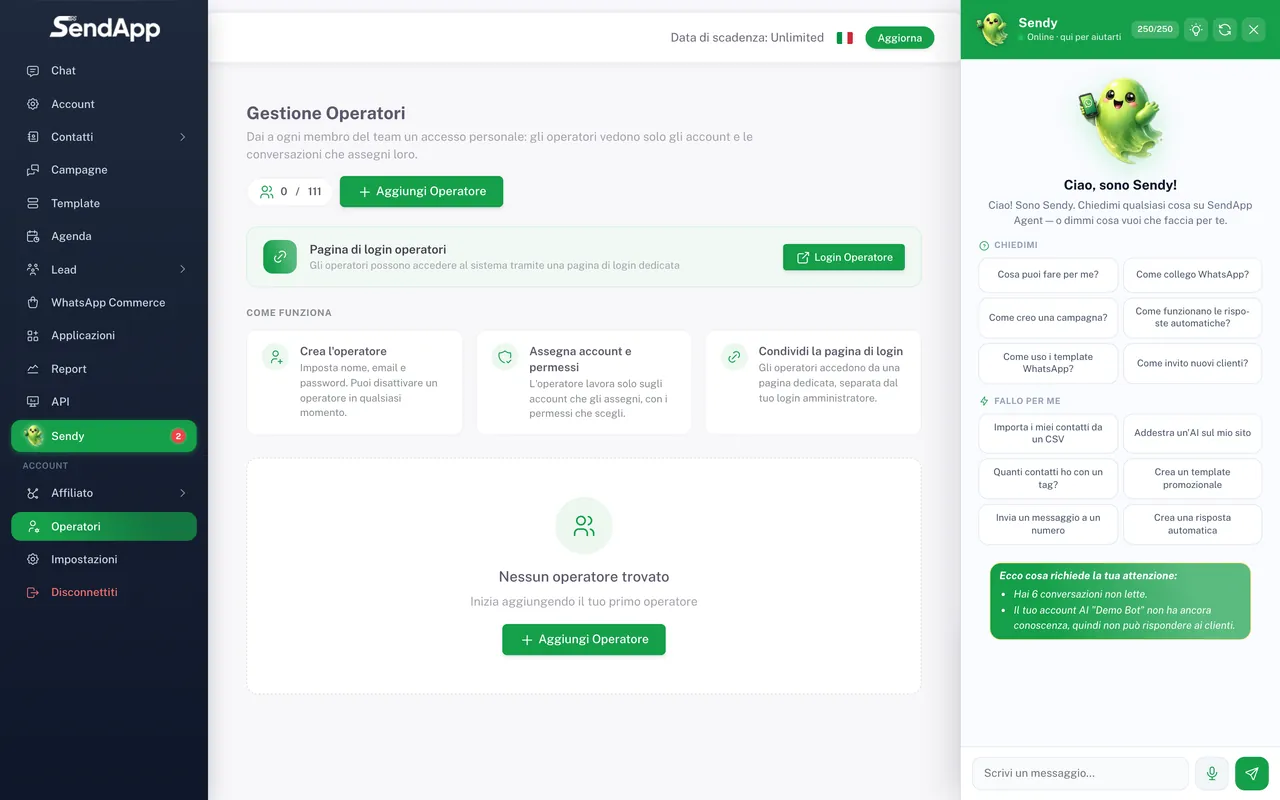
Owner and operators
The owner account has full access. Operators are sub-users designed for day-to-day chat work: they have a reduced view and don't see administrative sections like the plan or billing.
Adding an operator
- 1
Open the “Operators” section
From the menu, open Operators: you'll find the list of existing operators.
- 2
Press “New operator”
Enter the collaborator's name and email.
- 3
Set the password and permissions
Define what they can access (chat, contacts, campaigns…).
- 4
Assign the Trainings/channels
Limit the operator to the accounts or channels they need to manage.
- 5
Save
The operator can log in with their credentials.
Assigning conversations
You can assign a chat to a specific operator, so it's clear who's handling it. With the “assigned to me” filters, each person immediately sees their own conversations and avoids overlap with colleagues.
When a conversation changes hands, use the operator request and the “operator requests” filters: each person immediately finds the chats they need to handle, without overlap.
Permissions: grant the minimum necessary
- Support operators: access to Chat and Contacts, no Campaigns or Settings.
- Marketing managers: also Campaigns and Calendar.
- Owner only: plan, billing, operator management, security.
Common mistakes
- The operator doesn't see a section
- That's expected: it depends on permissions. If they need it, enable it from their profile in the Operators section.
- The operator can't upload media
- Check that their account has permissions on the channel: some endpoints require the operator's key to be enabled.
Ready to put it into practice?
Open SendApp and follow the steps in this guide. Need help? Support is one message away.