Guide/SendApp Agent/Inbox & Team
Managing conversations: replying, attachments, and voice notes
Once your channels are connected, all conversations flow into the inbox. Here we look at how you actually reply: from the composer bar to attachments, all the way to handing the conversation over to a human operator.
Updated on June 16, 2026 · 6 min read
Before you start
- At least one connected channel
- An incoming conversation to handle
Opening and reading a conversation
Click a row in the list on the left: the full thread of the contact opens in the center, with all messages in chronological order and the status checkmarks. At the top you see the name and channel; on the right, the contact card.
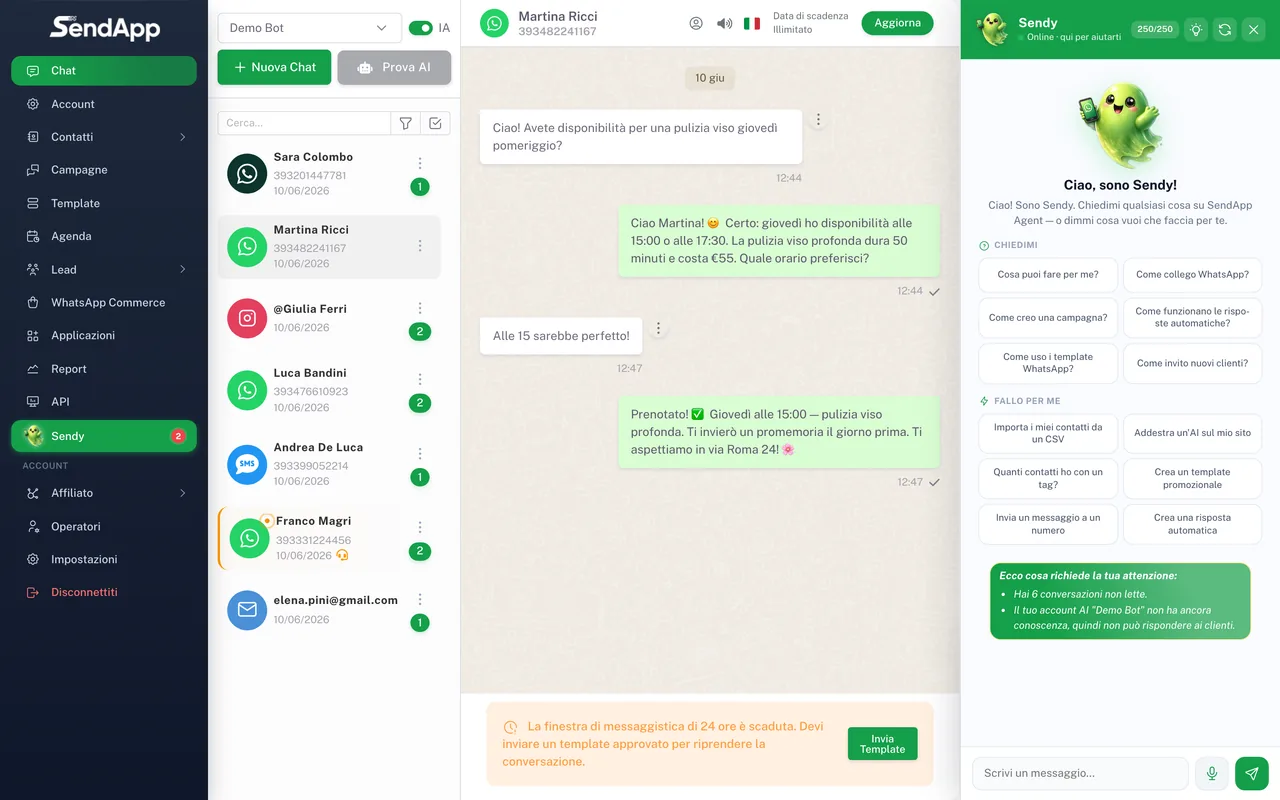
The composer bar
- Text field
- Write the message. Enter to send; Shift+Enter for a new line.
- Attachments
- Send images, documents (PDF), videos, and files. They are uploaded and delivered to the contact on the active channel.
- Emoji
- Emoji selector, available on the channels that support it.
- Voice notes
- Hold down the microphone to record a voice message (on channels that support it, e.g. WhatsApp).
- AI toggle
- Turn the AI assistant on or pause it for this specific conversation. When paused, only the operator replies.
Only one audio plays at a time: when you start a voice note, the one currently playing stops. This applies both in the dashboard and in the widget.
Handing the conversation to a person
When a request needs to be handled by a human, you can open an operator request on the conversation: it's marked as an “operator request”, the AI stops, and the team is notified. Handled conversations can then be marked as completed or archived.
Statuses, filters, and search
- Filter by channel to see only WhatsApp, only Instagram, etc.
- Filter by unread so you don't miss new messages.
- Use the “operator requests”, “completed”, and “archived” filters to manage your workflow.
- Search by name or number from the bar at the top left.
Common mistakes
- The audio doesn't play
- On official WhatsApp, server-side audio conversion is required: if voice notes don't arrive, it's a server configuration issue (ffmpeg). Contact support.
- The message stays on a single check
- The recipient didn't receive it: invalid number, closed 24h window, or undelivered template. See “Connecting WhatsApp”.
- The AI replies even when you don't want it to
- Pause the AI with the toggle in the composer bar before handling the chat manually.
Ready to put it into practice?
Open SendApp and follow the steps in this guide. Need help? Support is one message away.