Guide/SendApp Agent/Channels
Connect Instagram Direct
SendApp Agent handles Instagram direct messages (DMs and story replies) in the same inbox as your other channels, with the AI able to respond. The connection goes through the Facebook Page your professional Instagram account is linked to: it's the method Meta requires.
Updated on June 16, 2026 · 6 min read
Before you start
- A professional Instagram account (Business or Creator)
- A Facebook Page linked to that Instagram account
- Permission to manage the Page on Meta
How it works
Instagram doesn't connect "on its own": access to messages goes through the Facebook Page associated with your professional Instagram account. Once authorized, DMs and story replies arrive in the Chat section.
Before you start: the IG ↔ Page link
- Make sure the Instagram account is professional (Business or Creator), not personal.
- Check that it's linked to a Facebook Page (a setting on the Instagram/Meta side).
- You must be able to manage that Page with the Meta account you'll use to authorize.
Connect Instagram to SendApp
- 1
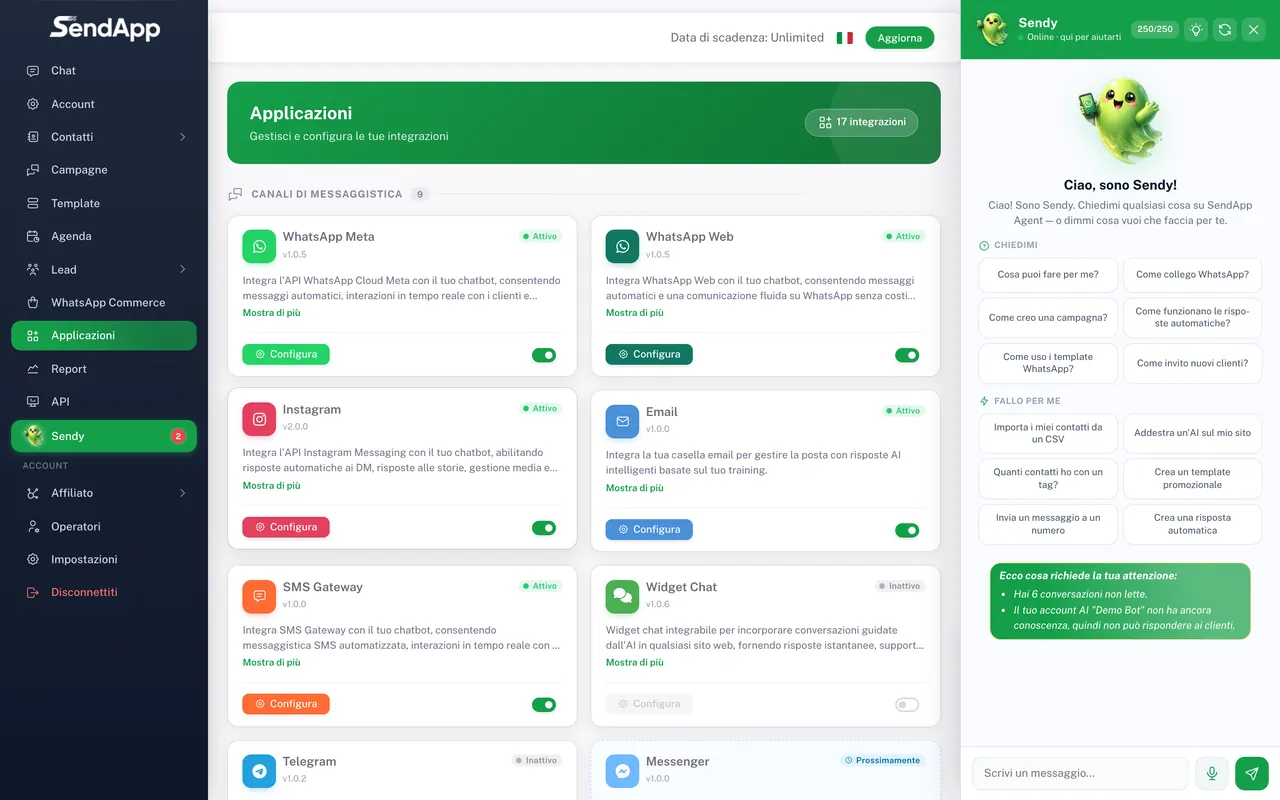
Open "Applications" and choose "Instagram"
From the Applications menu, select the Instagram channel and the Account to connect it to.
- 2
Authorize with Meta
The official Meta window opens: sign in and grant permissions on the Page linked to your Instagram. The screens are managed by Meta — follow the on-screen instructions (and Meta's Help Center if you have any doubts).
- 3
Select the Page/Instagram
Choose the Page linked to the Instagram account you want to manage and confirm.
- 4
Verify in Chat
DMs and story replies start arriving in the Chat section.
If the Page doesn't appear among the available ones, you're usually missing Page management permissions, or the Instagram account isn't correctly linked to the Page. Fix the link on the Meta side and try again.
Limits to know about
Instagram (on the Meta side) limits outgoing direct messages to about 200 per hour per account: SendApp takes this into account to avoid exceeding it. It's a platform limit, not a SendApp one.
Common errors
- I don't see Instagram messages
- Check that the IG account is professional, linked to the Page, and that you authorized permissions on the right Page.
- The right Page doesn't show up
- Missing Page management permissions or IG not linked to the Page. Fix it on Meta and re-authorize.
Ready to put it into practice?
Open SendApp and follow the steps in this guide. Need help? Support is one message away.