Guide/SendApp Official/Getting started
Manage multiple numbers: organizations and teams
In SendApp Official every WhatsApp number lives in an organization: one organization = one WABA = one number. To manage multiple numbers you create multiple organizations and switch between them with a selector. Here's how, and how to invite your team.
Updated on June 16, 2026 · 5 min read
Before you start
- A SendApp Official account with at least one connected number
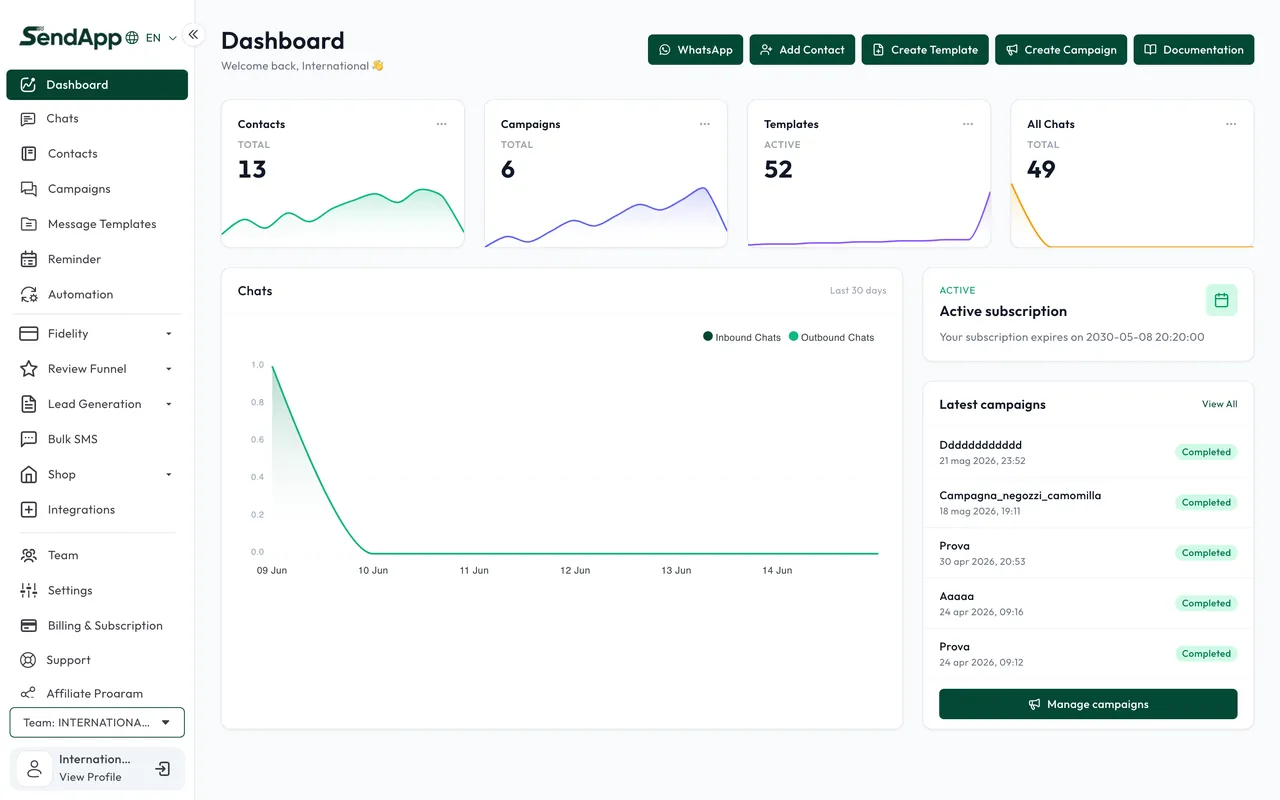
One number per organization
Unlike other products, in Official an organization manages a single number. It's a choice of the official API: each WABA/number has its own organization, with its own contacts, templates, campaigns, and team.
Add and switch organizations
- 1
Open the organization selector
From the menu/profile, access the list of your organizations.
- 2
Create a new organization
For a second number, create a new organization and connect the number with Embedded Signup.
- 3
Switch between them
Use the selector to change the active organization: the interface shows the data of the selected one.
Invite your team
- Owner
- Full control of the organization, including billing and settings.
- Manager
- Operational management (campaigns, templates, contacts) without the most sensitive functions.
- Agent
- Chat operator: manages the conversations assigned to them.
Organize numbers by line of business or client (if you're an agency): each organization stays isolated, with its own contacts and reports.
Ready to put it into practice?
Open SendApp and follow the steps in this guide. Need help? Support is one message away.