Guide/SendApp Official/Automations & AI
AI chatbot (automatic assistant)
SendApp Official includes an AI assistant that can reply to customers in chat automatically. You configure it by choosing the provider and model, defining the behavior, and training it on your documents.
Updated on June 16, 2026 · 6 min read
Before you start
- A connected number
- The AI module included in your plan
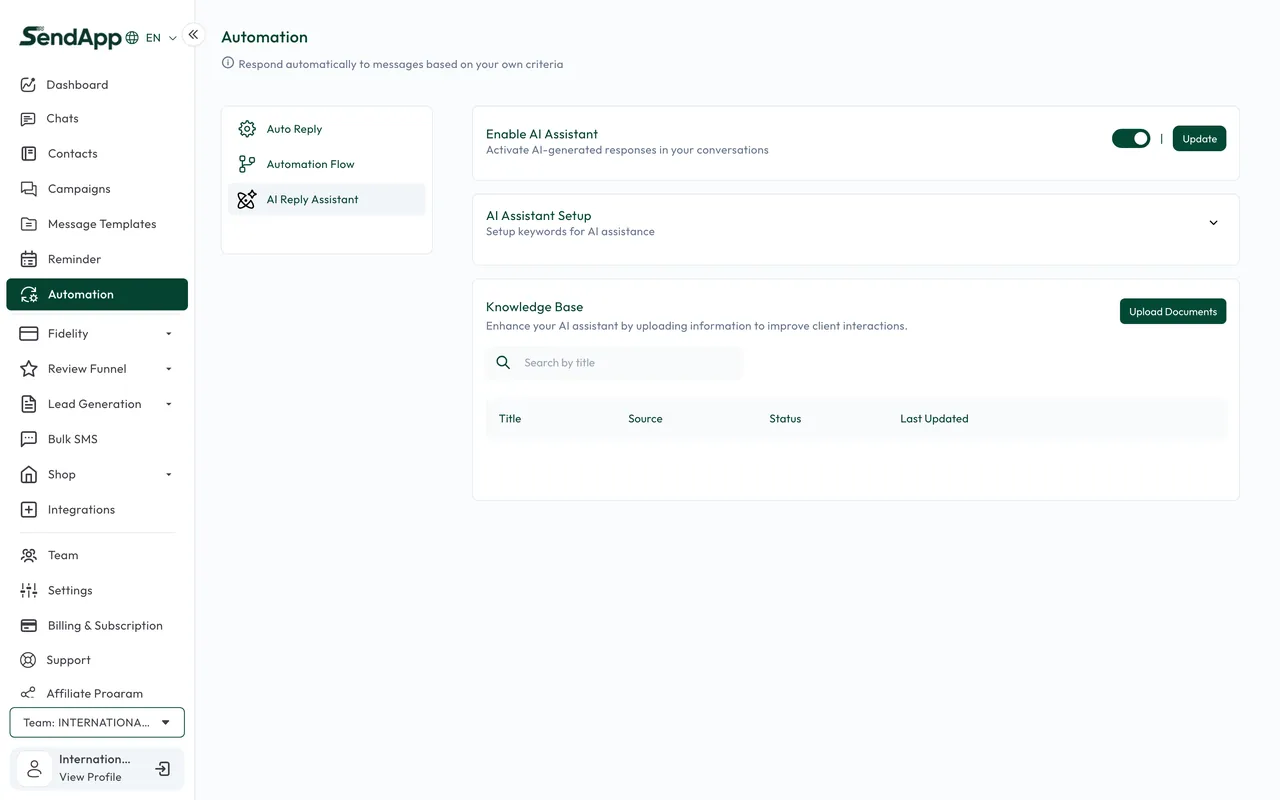
Configure the provider
- 1
Open the Automation → AI section
If the module isn't included in your plan, the page isn't available: you need a plan that includes it.
- 2
Choose provider and model
Select OpenAI or Groq and the model, setting parameters like maximum length and temperature (creativity).
- 3
Enter the provider's key
Configure the credentials for the chosen AI provider.
Assistant behavior
- Automatic replies
- Turn the AI's automatic reply to conversations on or off.
- Start words
- Words that activate the assistant on a conversation.
- Stop words
- Words that stop the assistant (e.g., when the customer asks for a human).
Train the AI
You upload documents (knowledge base) the AI draws on to reply: price lists, FAQs, product sheets. The more organized and up to date the base is, the more accurate the answers.
Enable and disable
- Global activation: you enable/disable the AI for the organization.
- Per contact: you can exclude a specific contact from automatic replies.
- Per conversation: stop words halt the AI when an operator is needed.
Ready to put it into practice?
Open SendApp and follow the steps in this guide. Need help? Support is one message away.