Guide/SendApp Agent/Calendar & reminders
Calendar: bookings, reminders, and Google Calendar
The Calendar turns SendApp Agent into a booking and reminder tool. It reduces no-shows with automatic alerts on WhatsApp and lets you collect appointments even while you sleep, thanks to a booking link you can share.
Updated on June 16, 2026 · 7 min read
Before you start
- A SendApp Agent account
- A connected channel to send the reminders
The two tabs: Reminders and Bookings
The Calendar page is divided into two areas: Reminders, scheduled and recurring messages, and Bookings, the appointments collected from customers.
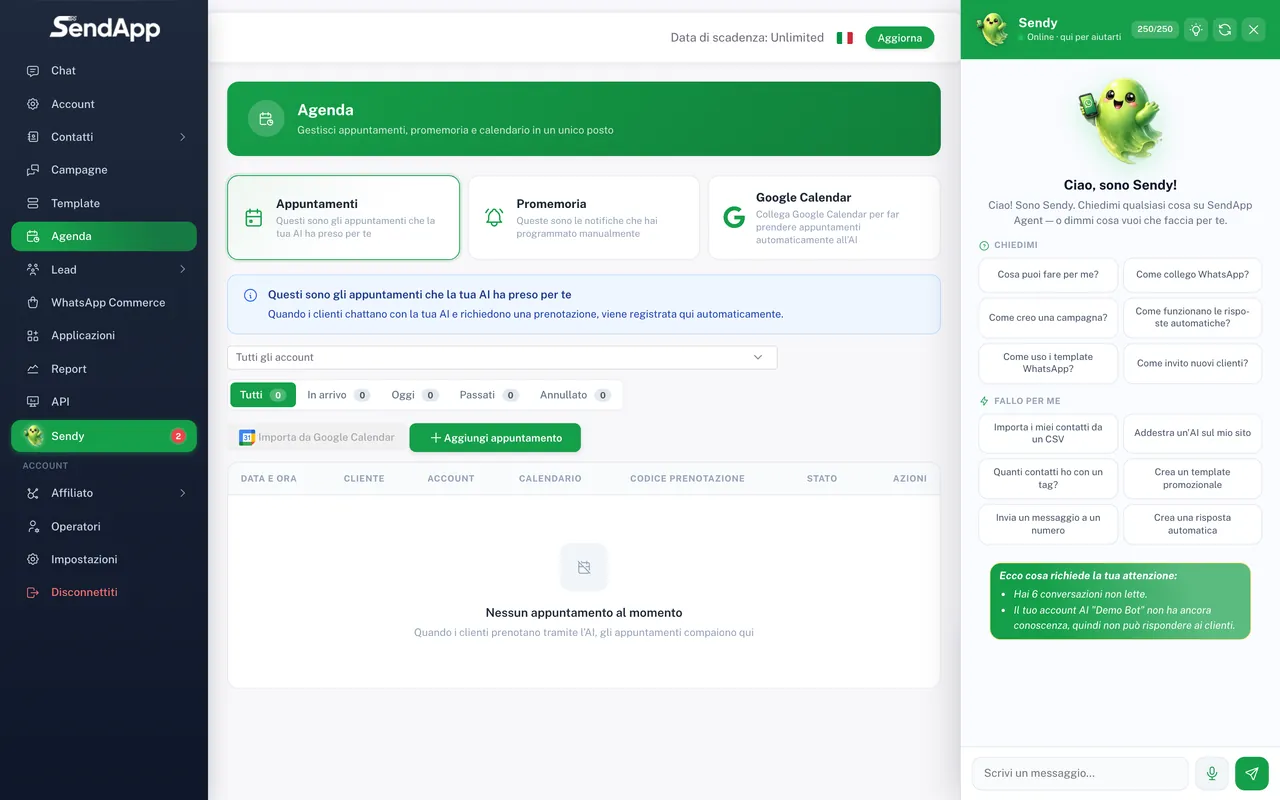
Creating a reminder
- 1
Open Calendar → Reminders → New
Go to the Reminders tab and create a new reminder.
- 2
Choose the recipient and the channel
A contact or a segment, and the channel to send on (e.g. WhatsApp).
- 3
Write the message
The reminder text (e.g. “We look forward to seeing you tomorrow at 3:00 PM”).
- 4
Set date, time, and recurrence
One-time or recurring (daily, weekly, monthly).
- 5
Save
The reminder goes out automatically at the set time.
Bookings and the booking link
Bookings live in the Bookings tab: each appointment has a contact, title, date, time, duration, and notes. With the “Appointment Link” app you can generate a booking link to share (website, Instagram bio, messages); the AI can also offer it in chat when a customer asks for an appointment. The collected bookings appear in Bookings, ready to manage.
Pair bookings and reminders: when an appointment is confirmed, set an automatic reminder for the day before. It's the most effective way to cut no-shows.
Syncing Google Calendar
- 1
Connect your Google account
From the Google Calendar app (in Applications) authorize SendApp to access the calendar (OAuth).
- 2
Enable sync on the booking
When you create a booking, enable the Google Calendar sync option.
- 3
Verify
The appointment is also created on your Google Calendar, keeping everything aligned.
Technical notes
Reminders are processed automatically at regular intervals: set the time a few minutes ahead of the exact moment you want the customer to receive the alert, so you're always covered.
Common mistakes
- The reminder doesn't arrive
- Check that the chosen channel is connected and active and that the recipient's number is valid.
- Appointment overlaps
- Sync Google Calendar and keep the calendar up to date, so you always have a clear view of existing commitments when you confirm a new booking.
Ready to put it into practice?
Open SendApp and follow the steps in this guide. Need help? Support is one message away.