Guide/SendApp Official/Campaigns
Create a broadcast campaign
Broadcast campaigns send a template to many contacts. In Official you can only use templates approved by Meta, schedule the send with limits and a time window, and follow the results in real time.
Updated on June 16, 2026 · 6 min read
Before you start
- At least one Approved template
- Contacts in your address book
- A connected WhatsApp number
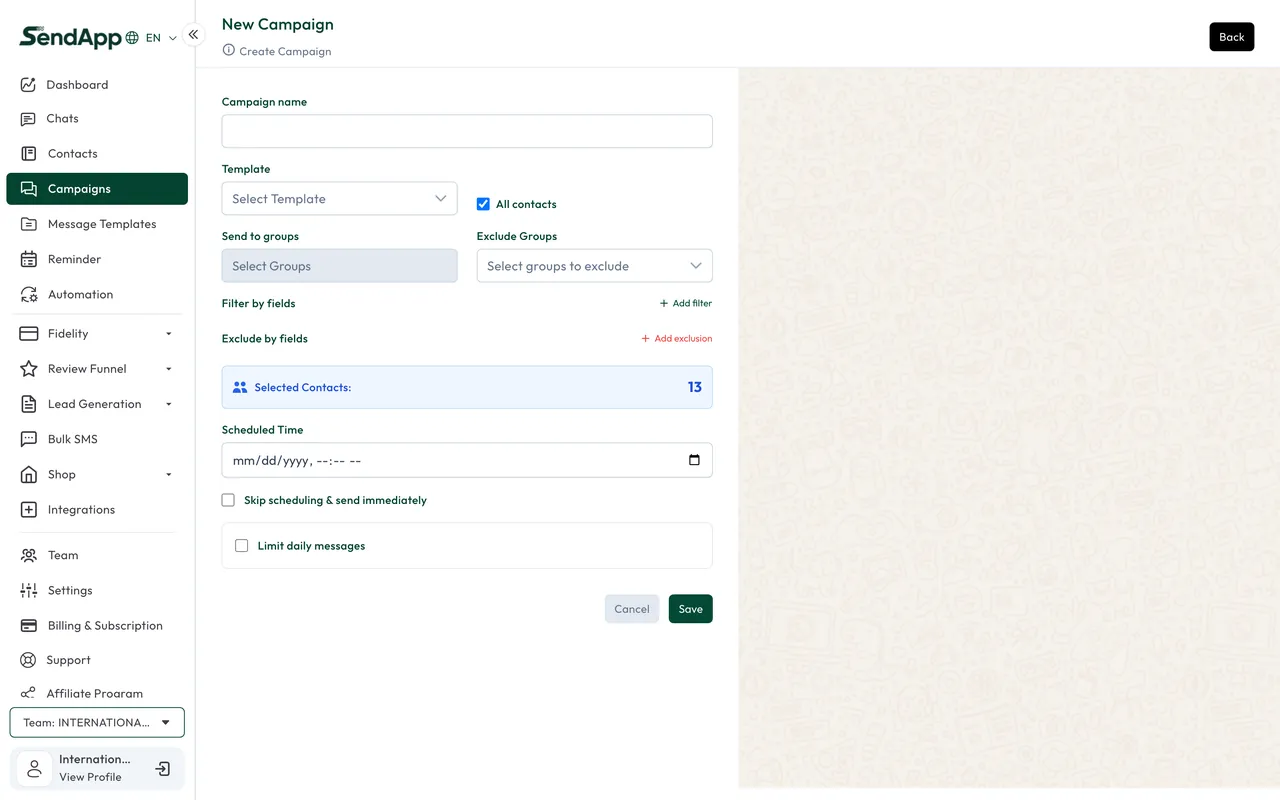
Create the campaign
- 1
Open Campaigns → Create
Start a new campaign.
- 2
Choose the template
Only templates with Approved status can be selected. Fill in the variables for the recipients.
- 3
Select the recipients
Choose the contacts/groups to send to.
- 4
Schedule and set limits
Send date/time, optional daily limit, and time window (09:00–17:00 by default).
- 5
Start
The campaign moves through its processing states (building, scheduled, in progress, completed).
Controls during sending
- Pause, resume, or stop the campaign at any time.
- Resend only to those who failed, without resending to those who already received it.
- Export the results for external analysis.
The time window avoids sending at intrusive hours; the daily limit spreads the messages over several days. On new numbers, start with modest volumes.
Reading the reports
For each campaign you see sent, delivered, read, replies, and failed. The delivered/sent ratio is the most reliable indicator: a wide gap signals invalid numbers or undelivered templates (often a missing payment method on the WABA).
Ready to put it into practice?
Open SendApp and follow the steps in this guide. Need help? Support is one message away.