Guide/SendApp Cloud/Getting started
Manage multiple WhatsApp numbers
SendApp Cloud is designed to manage multiple WhatsApp numbers from a single dashboard. The maximum number depends on your plan (up to 15 on the higher plans). Here we'll see how to manage them and how they're used in campaigns.
Updated on June 16, 2026 · 4 min read
Before you start
- A SendApp Cloud account
- Multiple WhatsApp numbers to connect
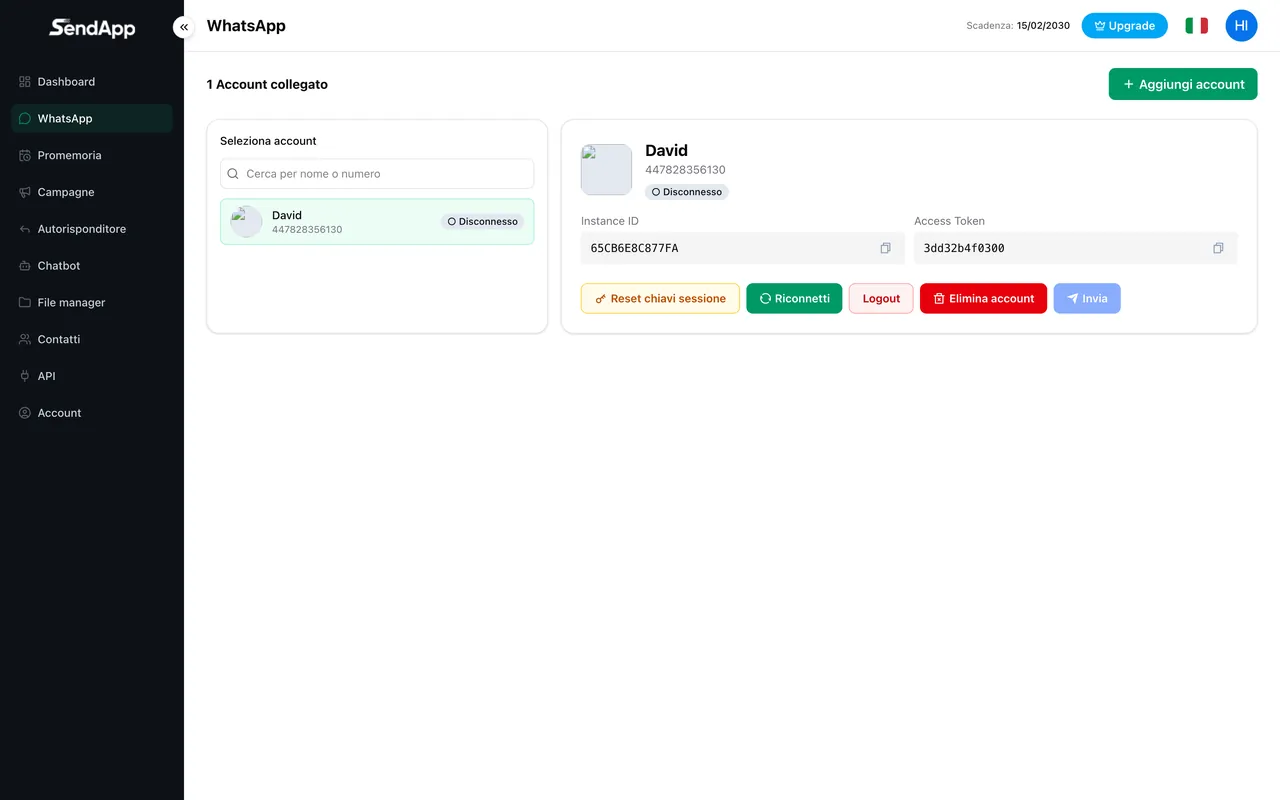
Multiple accounts in a single view
All connected numbers appear on the same page, with status (connected/disconnected) and quick actions (reconnect, reset). You can search them by name or number.
How many numbers can I connect
The limit is set by the plan (the “WhatsApp accounts” item): it ranges from 1 on the base plans up to 15 on the higher plans. To increase it, upgrade to a higher plan.
Numbers and campaigns
- In campaigns you can select multiple numbers: messages are distributed across the connected accounts.
- Each account has its own credentials for use via API.
- Keep accounts “warm” (see the guide on proper use) to reduce the risk of being blocked.
Distributing sends across multiple numbers helps keep a “human” pace and reduces the risk of being blocked. But stay within the volumes appropriate to each number's status.
Ready to put it into practice?
Open SendApp and follow the steps in this guide. Need help? Support is one message away.