

Introduction
Automating processes is essential for saving time and increasing productivity. In this guide, we'll show you how to connect Sendapp, our powerful WhatsApp marketing software, Google Sheets using Zapier. This will allow you to automatically send WhatsApp messages whenever you add new rows to your Google Sheet.
Step 1: Choose your Sendapp plan
First of all, you will need to choose the plan Sendapp that suits you. You can opt for a demo plan or for one for a fee. After activating your plan, you'll need to connect your WhatsApp account.
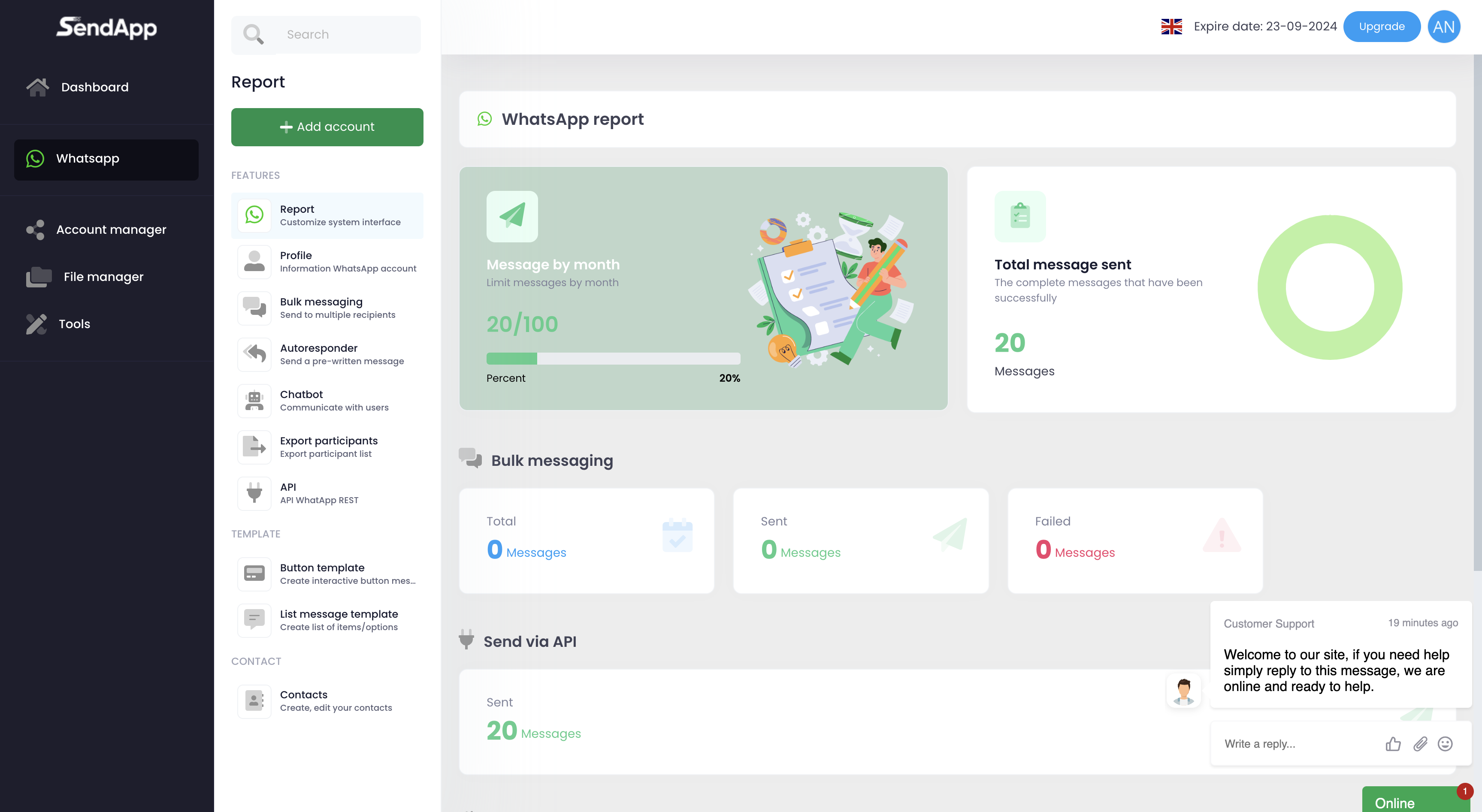
Step 2: Connect your WhatsApp account
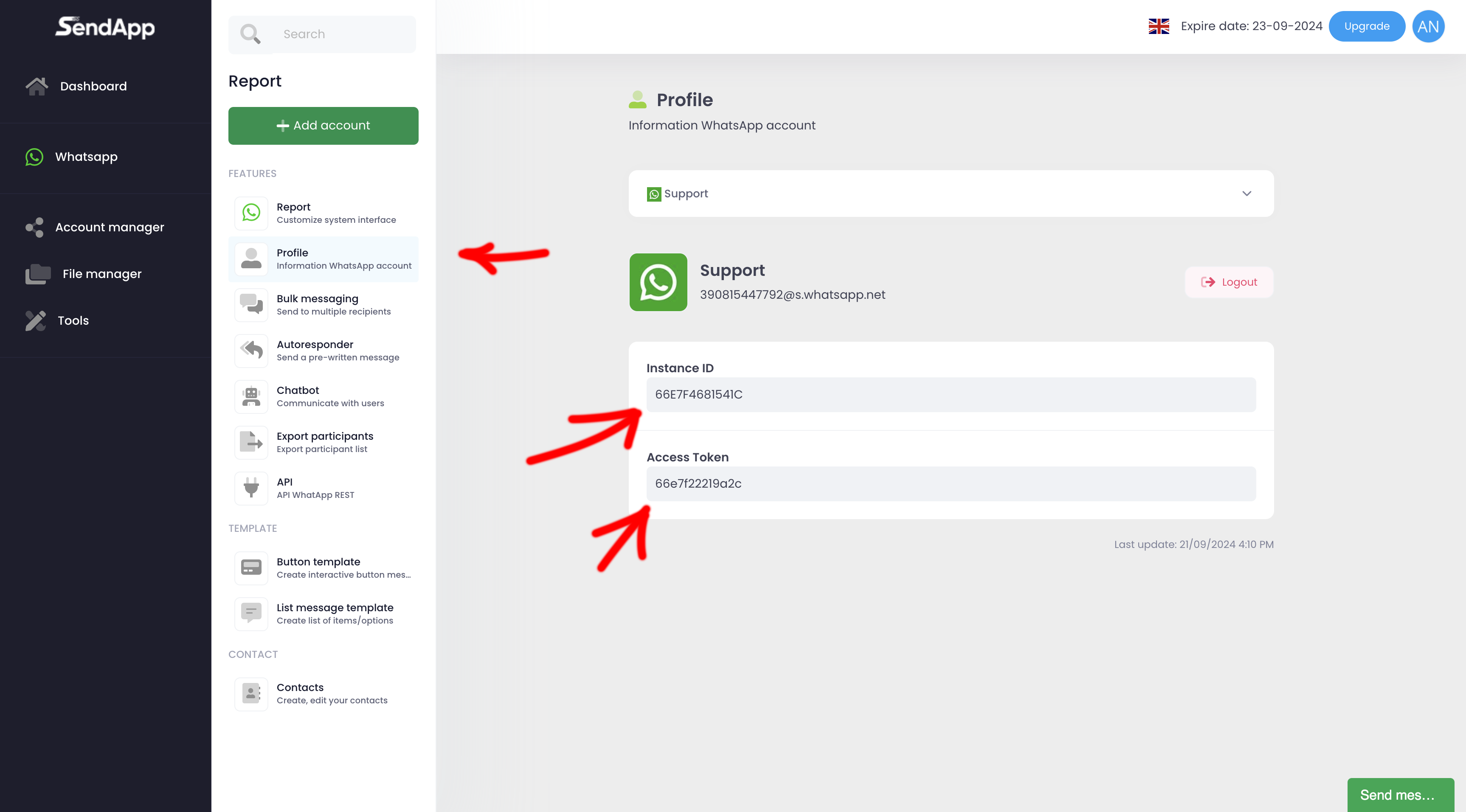
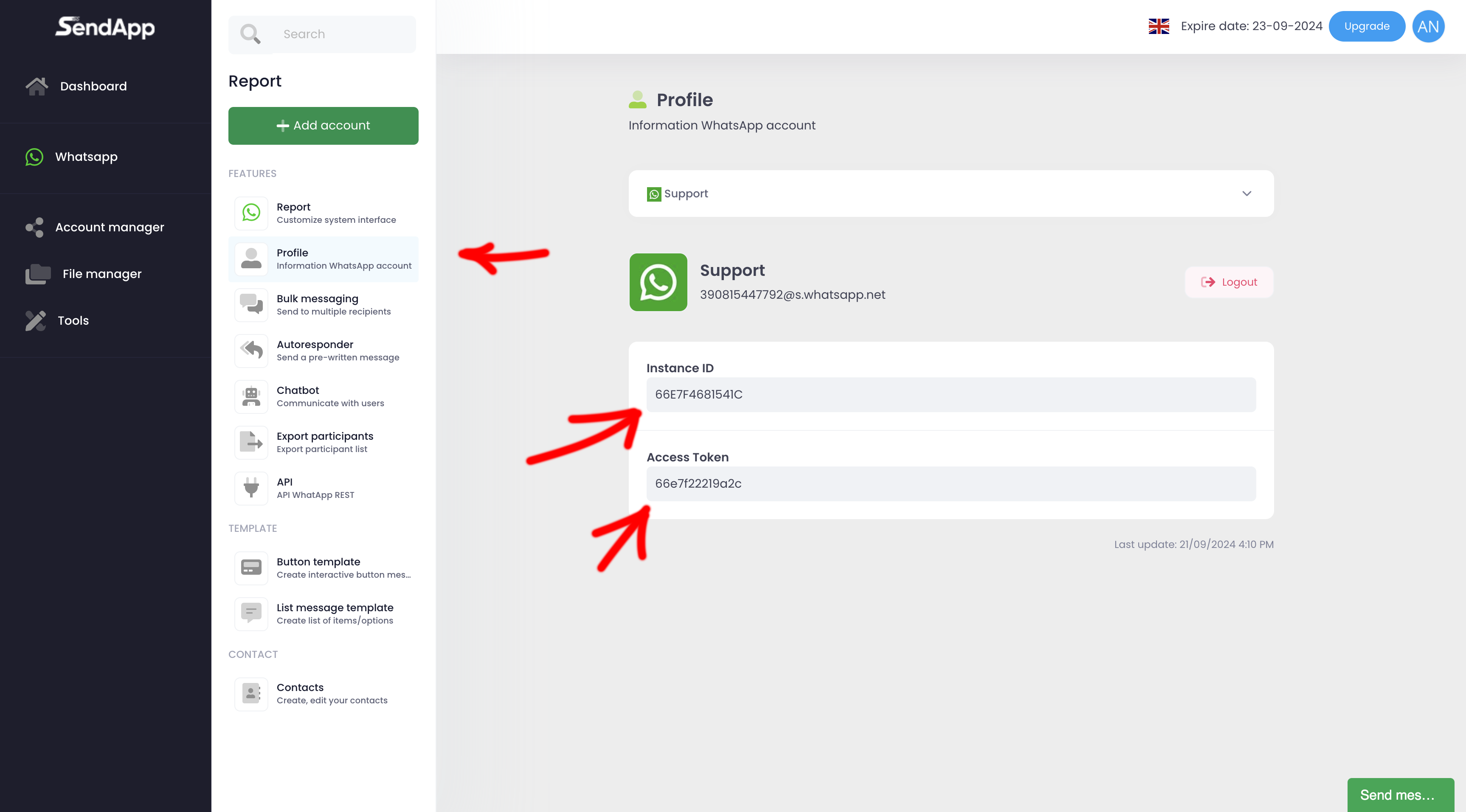
- Log in to Sendapp and go to the section Profile.
- A will be displayed QR Code which you will need to scan with your phone using the desired WhatsApp account.
- Once the scan is complete, the screen will display the’Access Token and the’Access ID. This data will be needed to connect your Sendapp account to Zapier.
Step 3: Create the CSV Template for Google Sheets
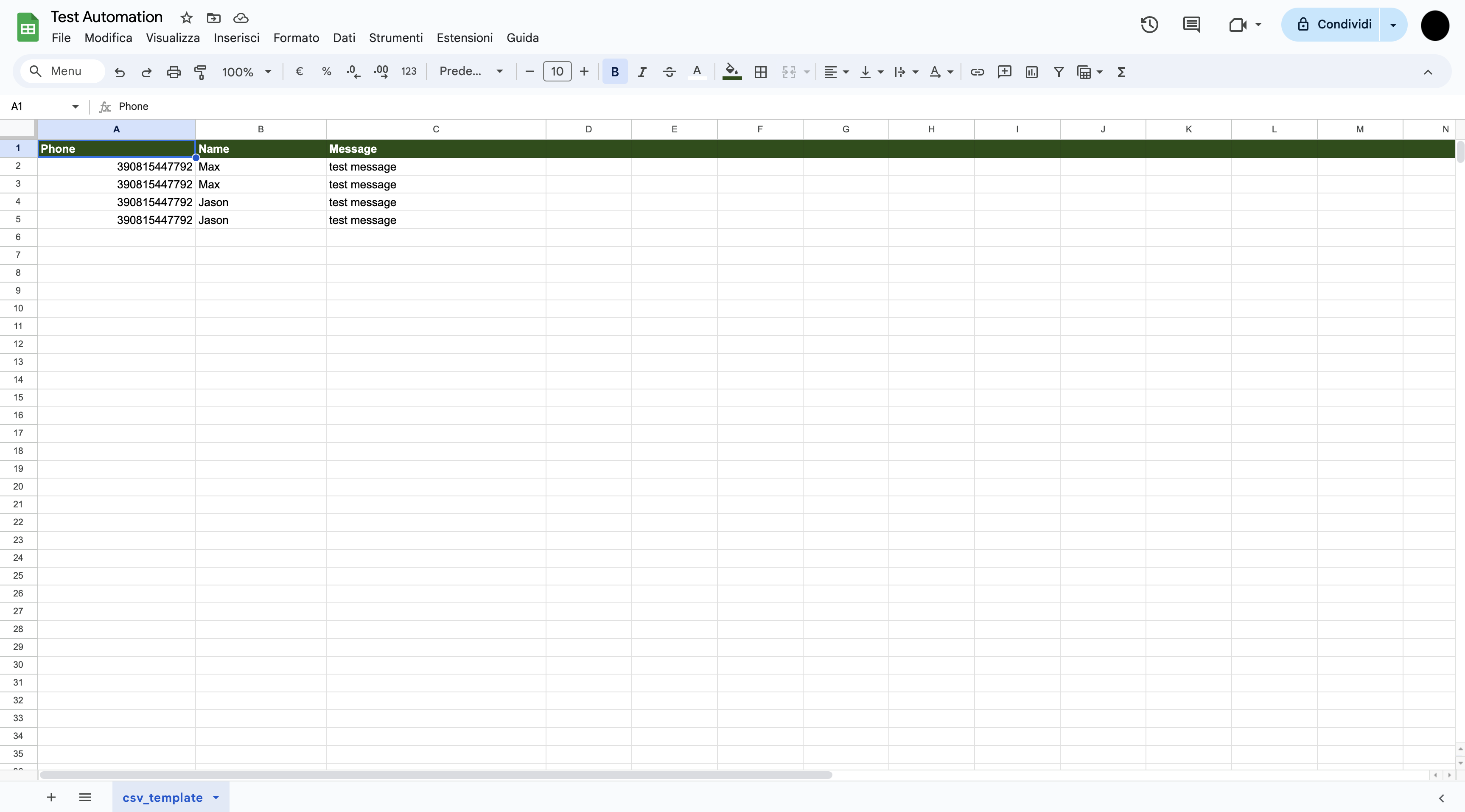
To automate sending messages via Google Sheets, you need to create a CSV template. This template will contain the information that Sendapp will use to send WhatsApp messages. Make sure the CSV file includes columns such as:
- Telephone number
- Recipient's name
- Personalized message
Step 4: Create a New Zap in Zapier
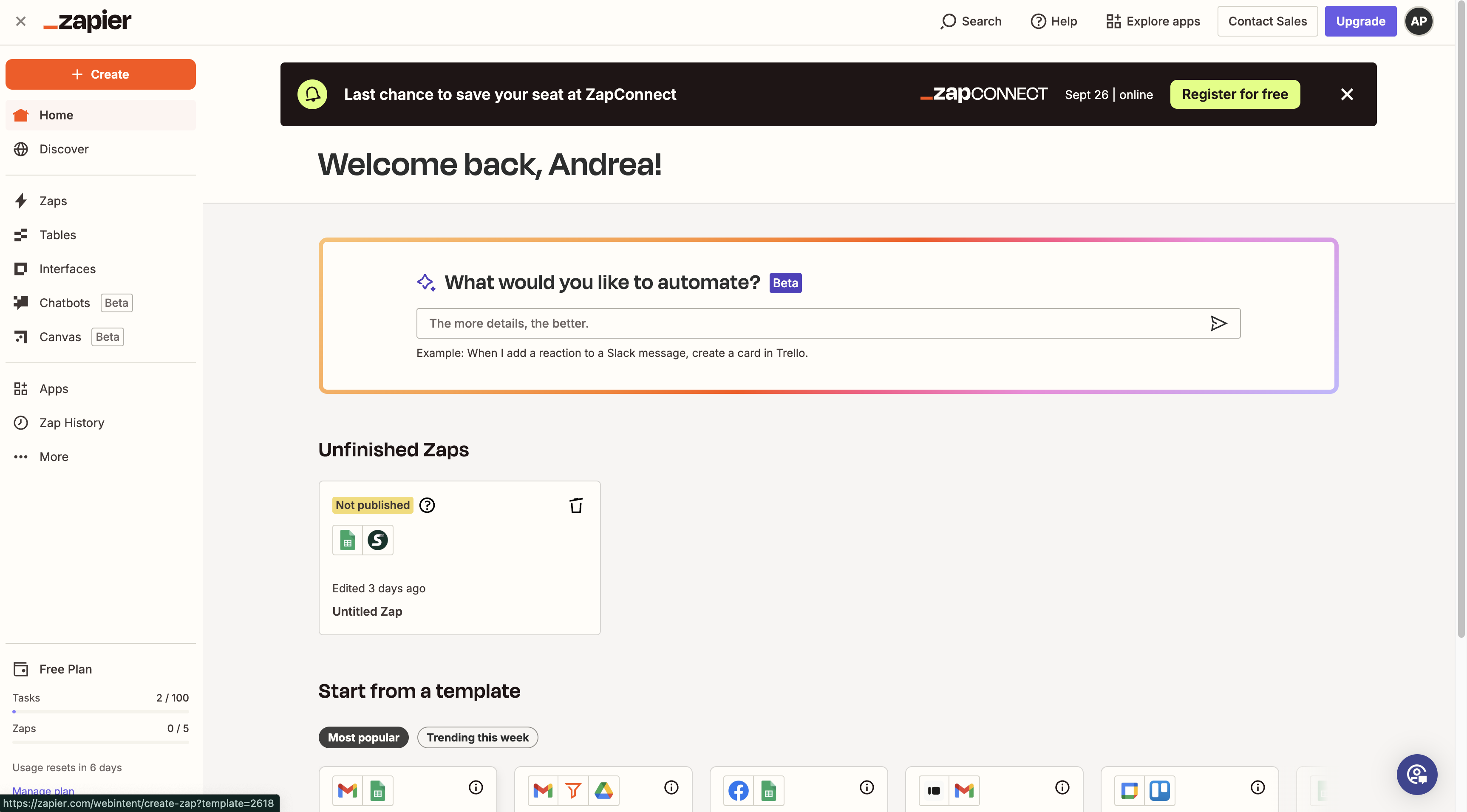
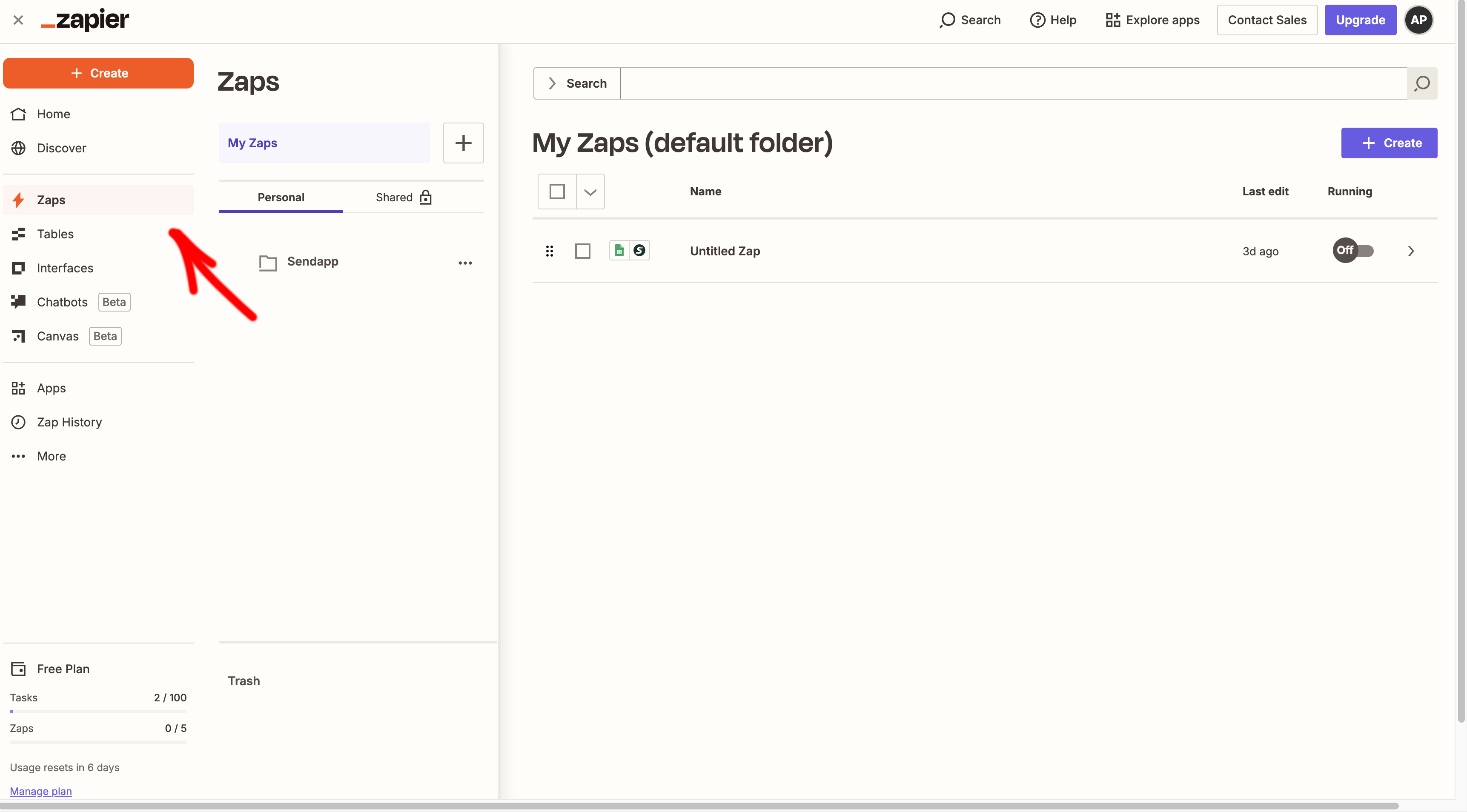
- Log in to your account Zapier.
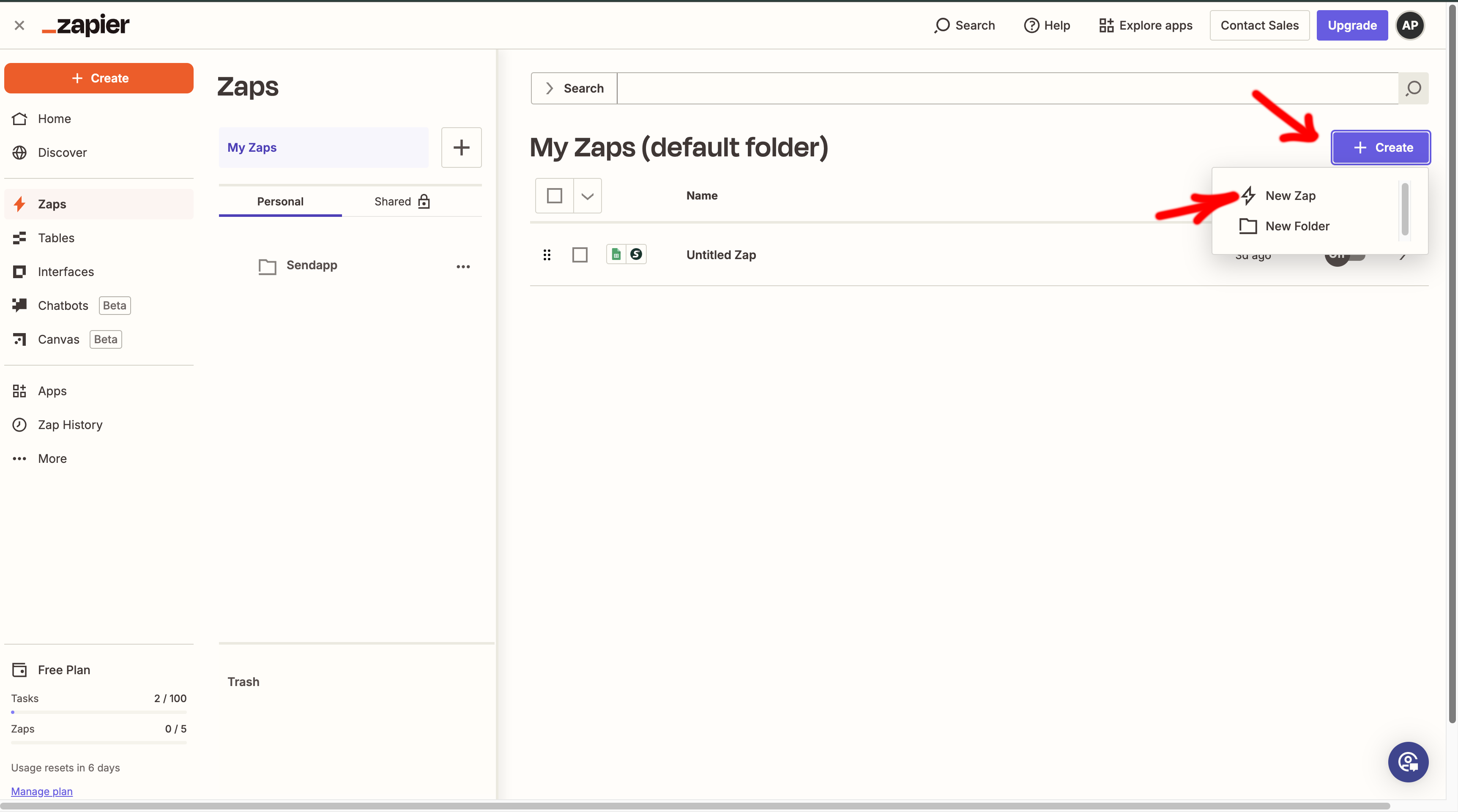
- Click on “Make a Zap”.
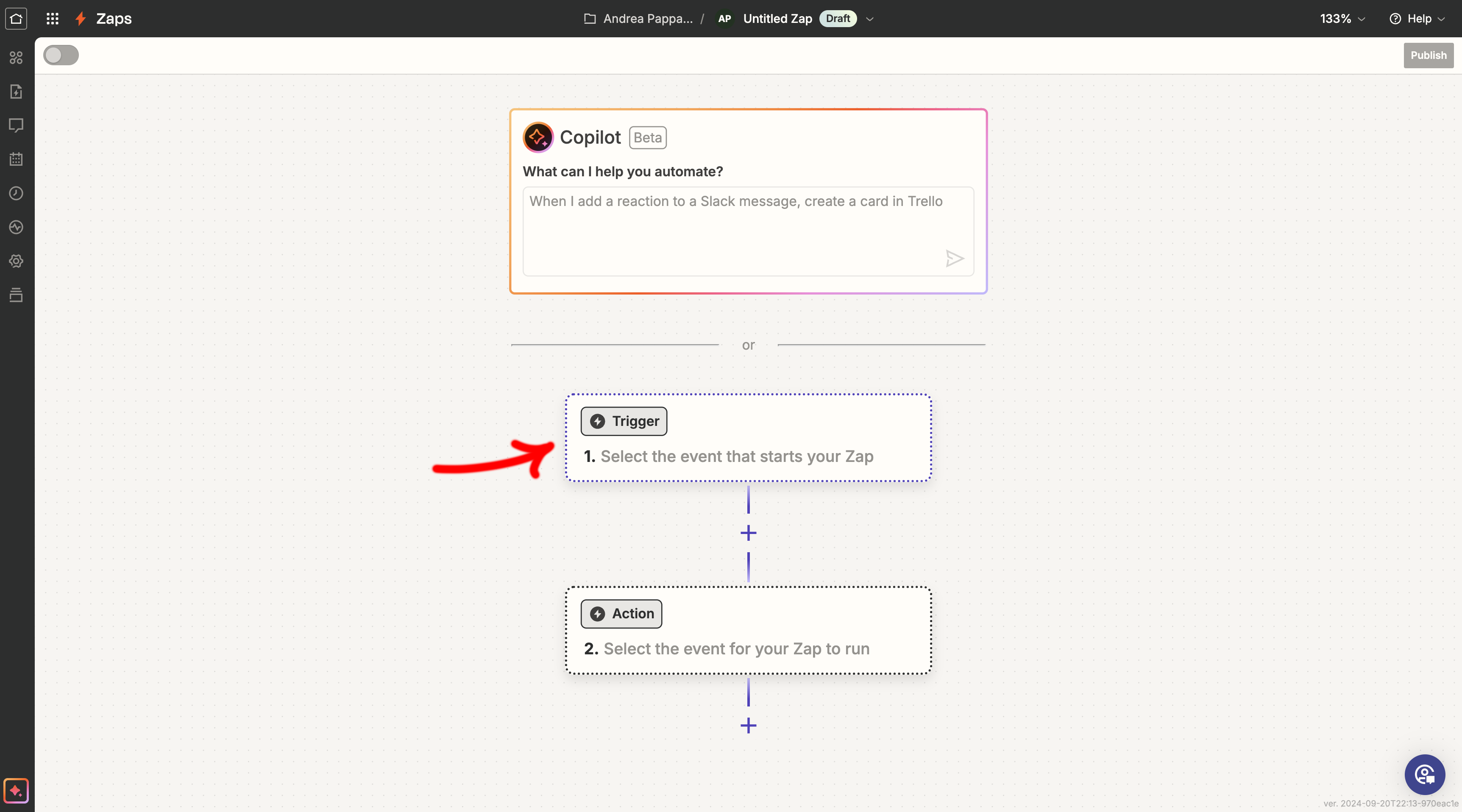
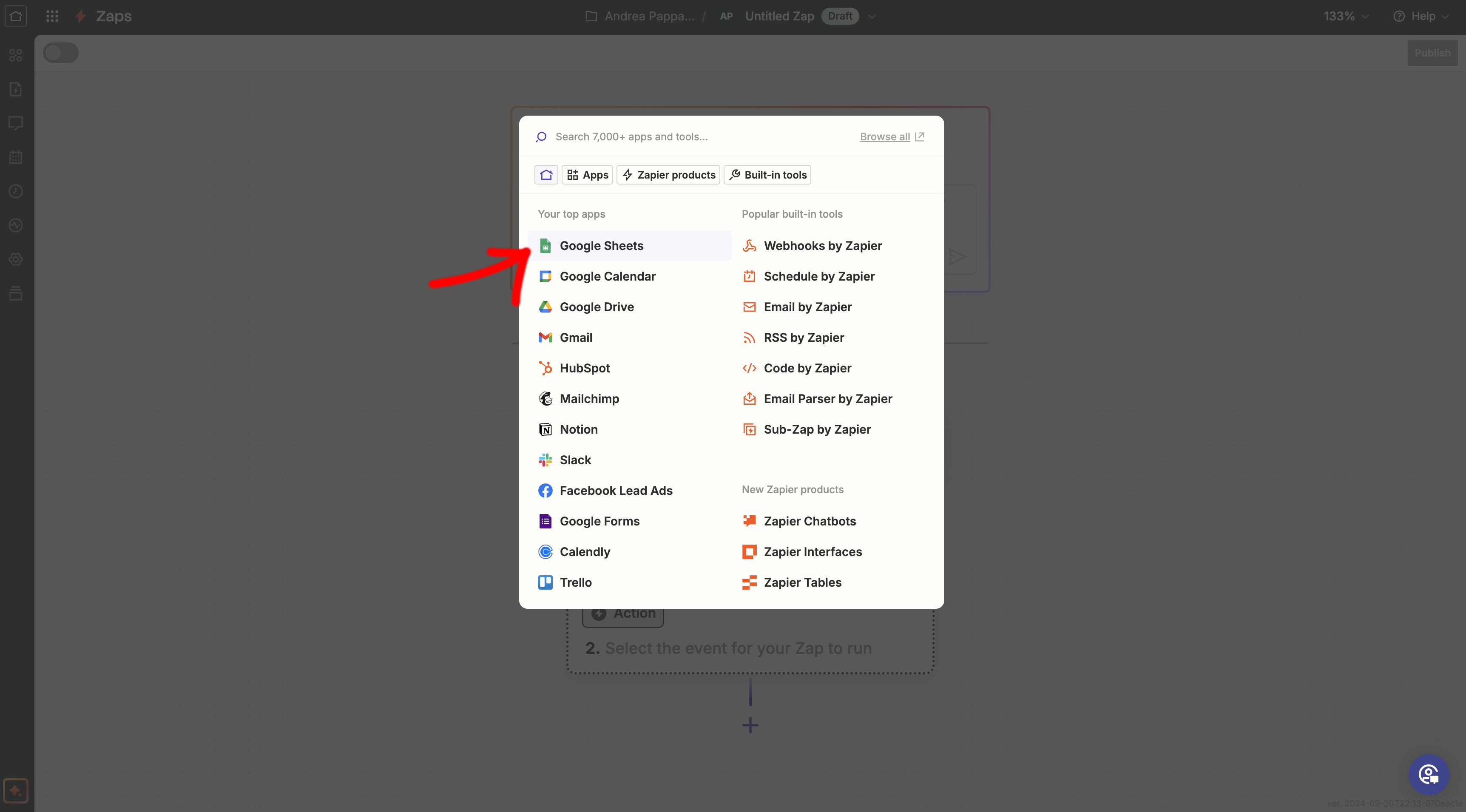
- In the search bar, search Google Sheets and select it as “Trigger App”.
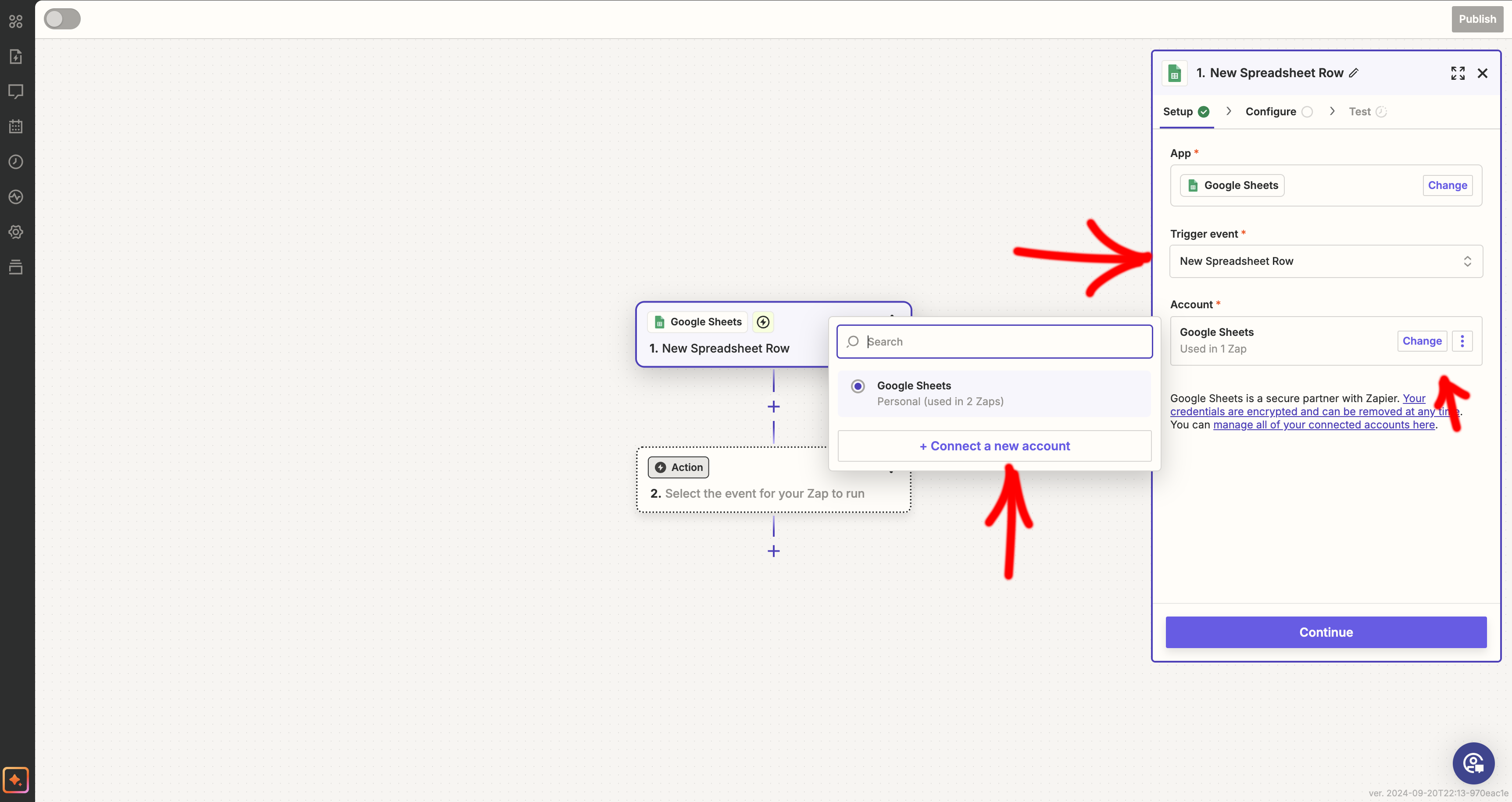
- Choose the trigger “New Spreadsheet Row”, which will be activated whenever you add a new row to the sheet.
 Step 5: Set up your Google Sheet
- Select the account Google that you want to connect Zapier to.
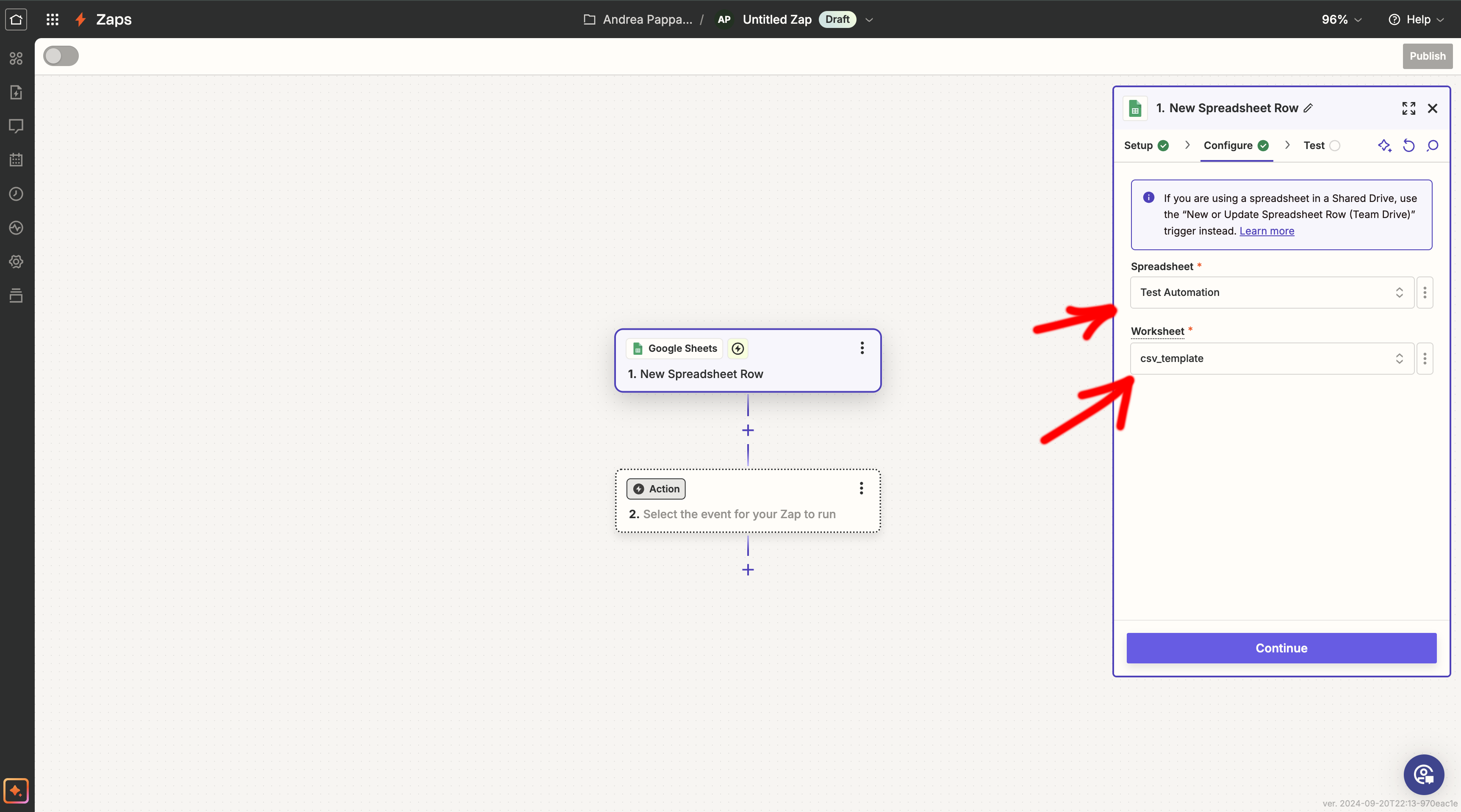
- On the next screen, choose the spreadsheet and the CSV template that you have prepared.
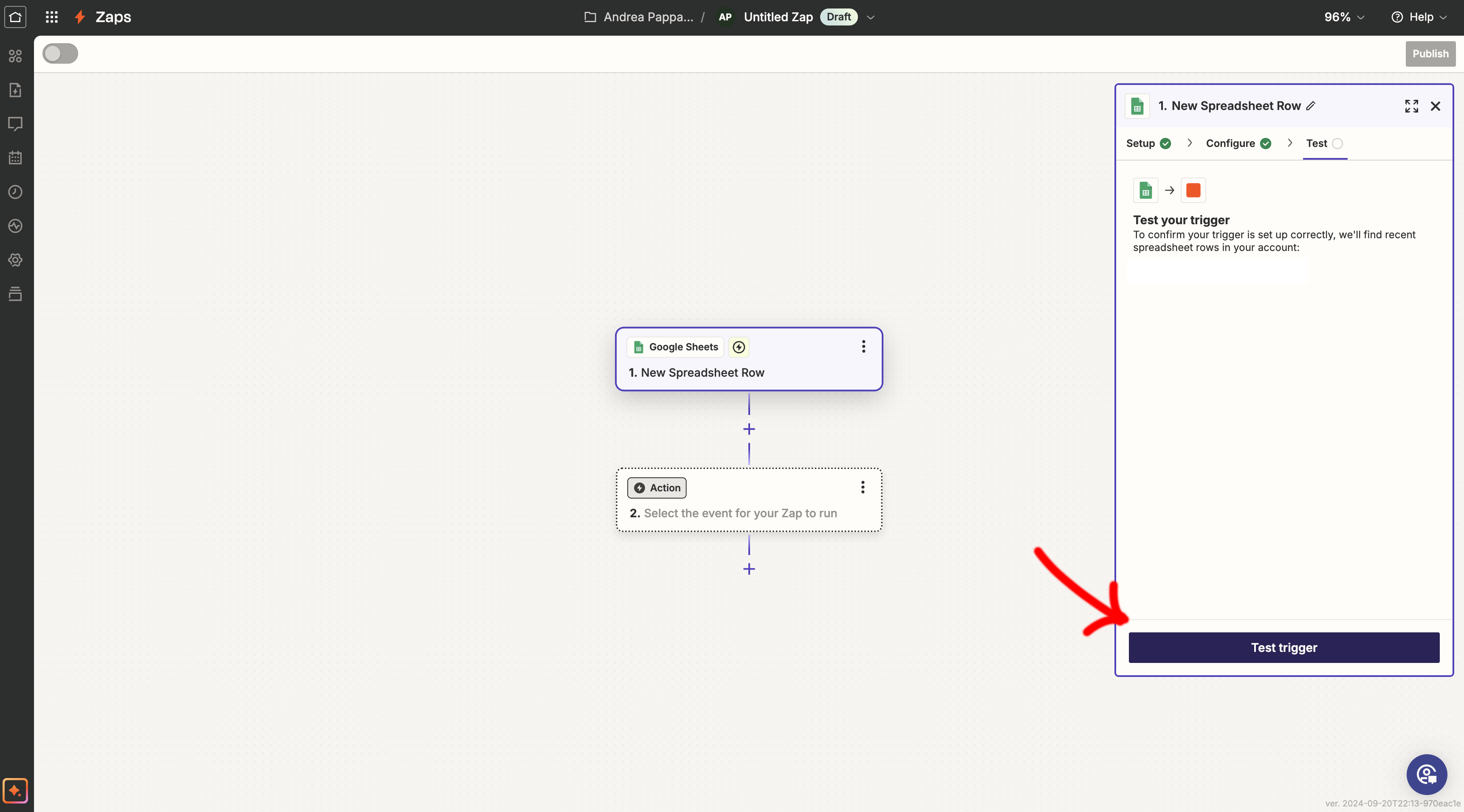
- Test your connection to ensure Zapier can access your data properly.
Step 6: Add Sendapp as an Action App
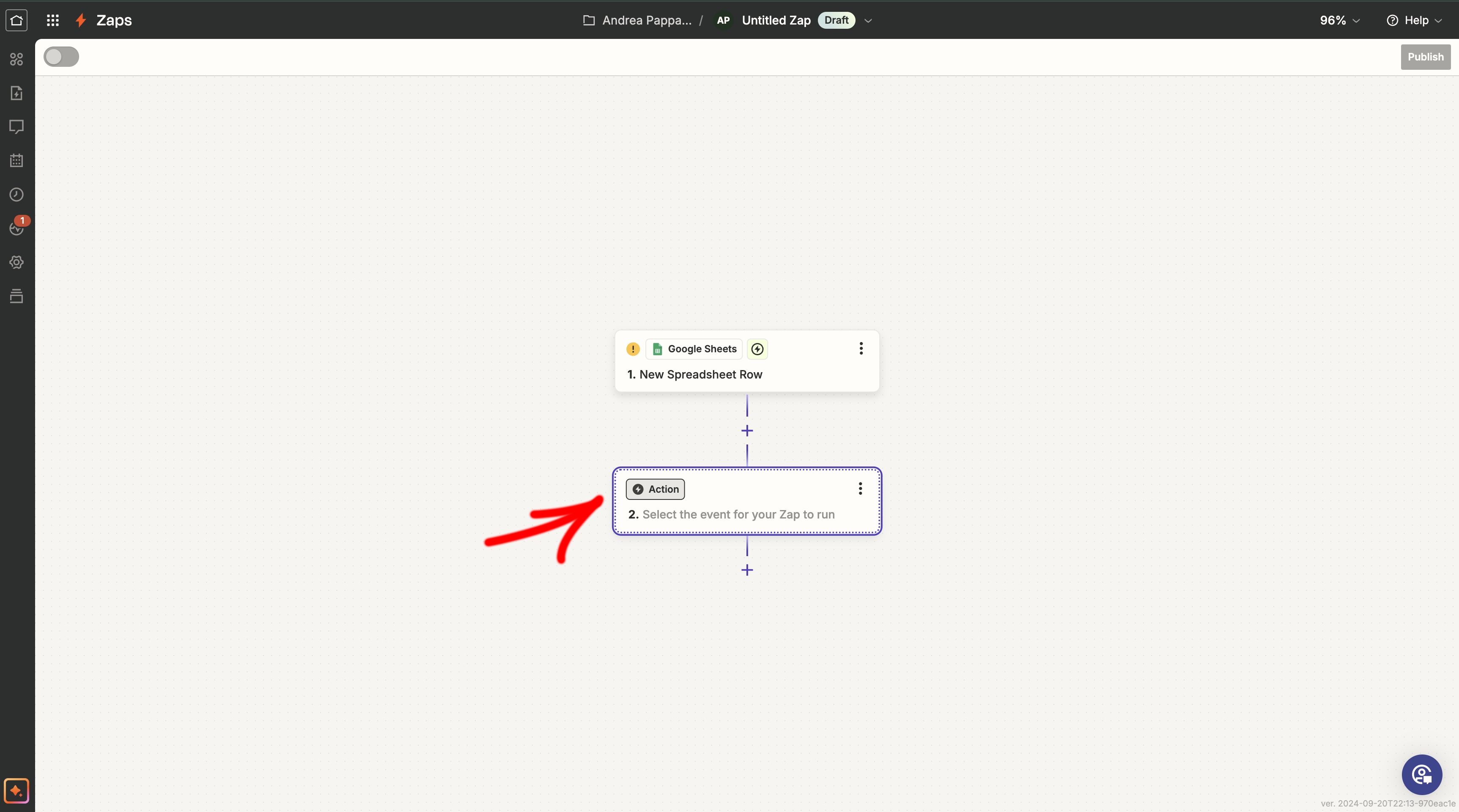
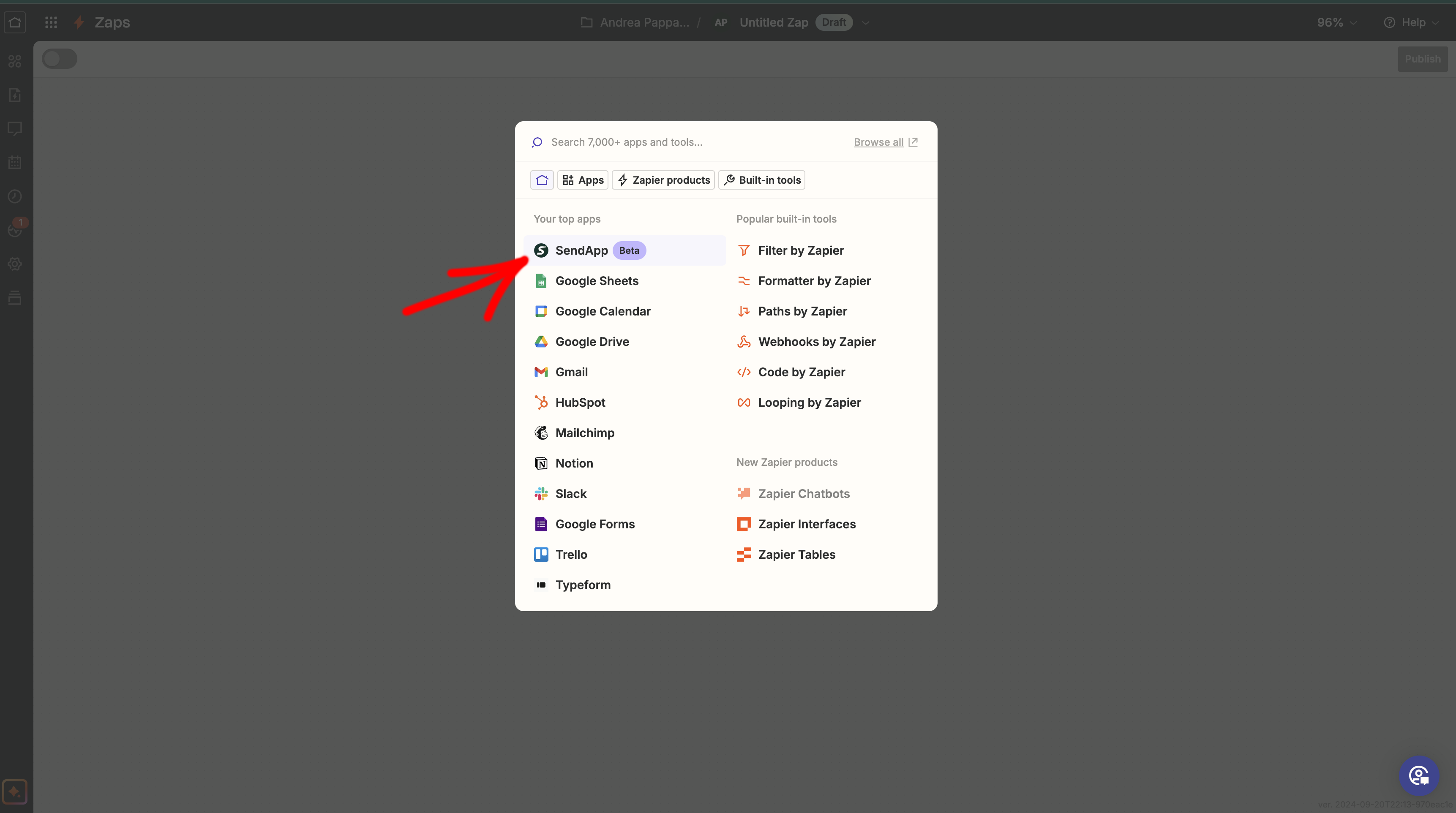
- After configuring the Trigger, click on “Add Action” and search Sendapp.
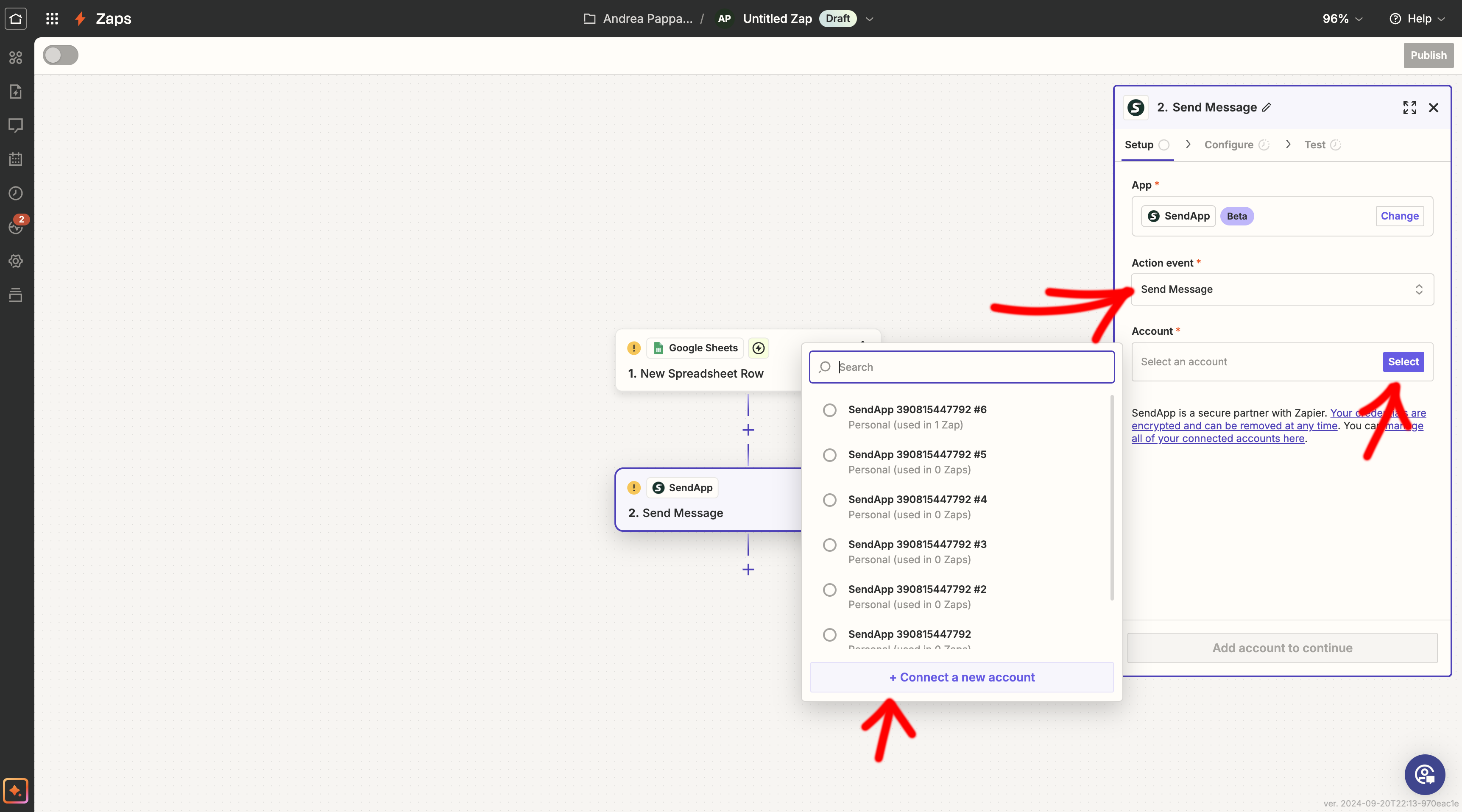
- Select the action “Send a WhatsApp message”.
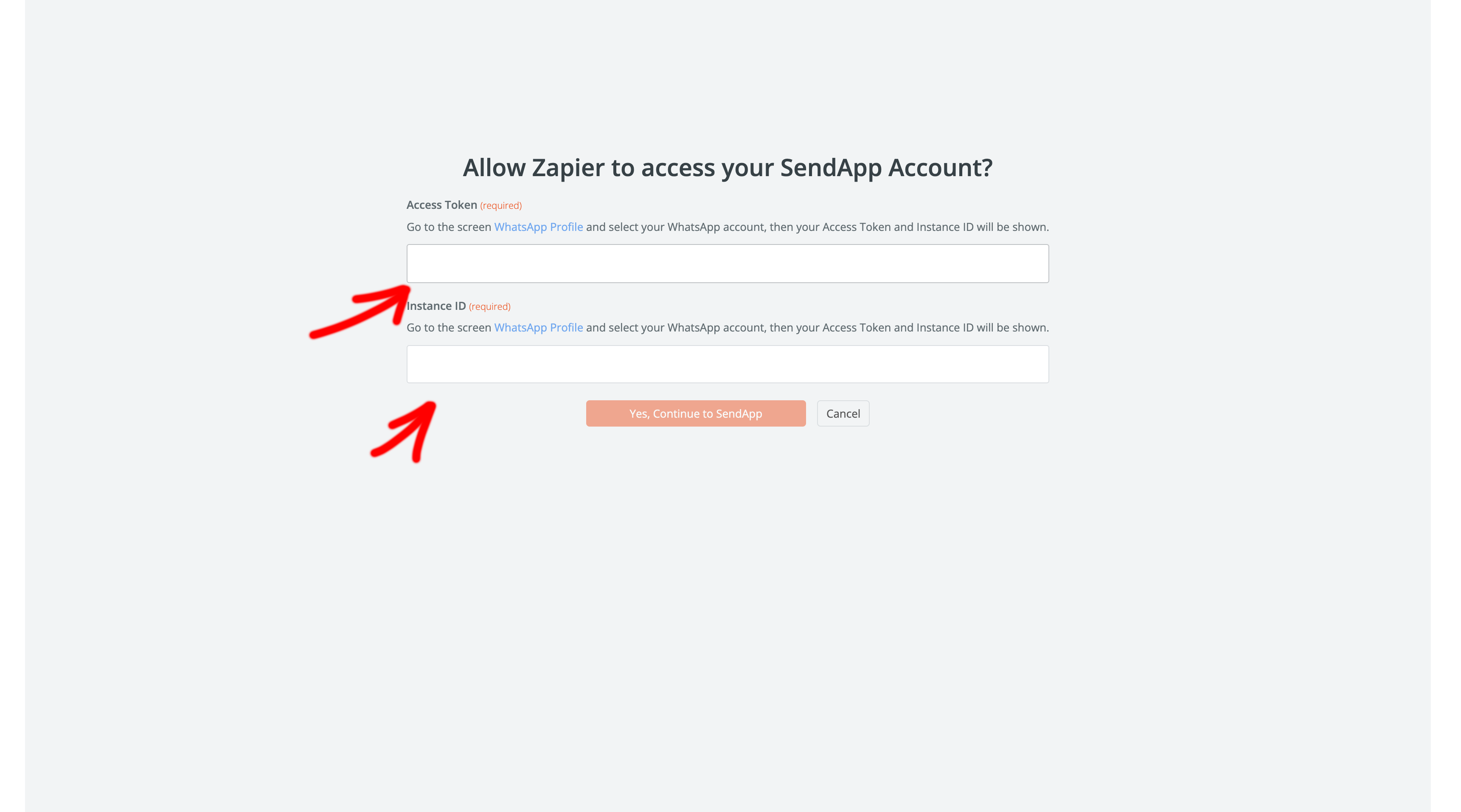
- Enter the’Access Token and the’Access ID that you previously obtained from your Sendapp account.
Step 7: Configure the Sendapp Action
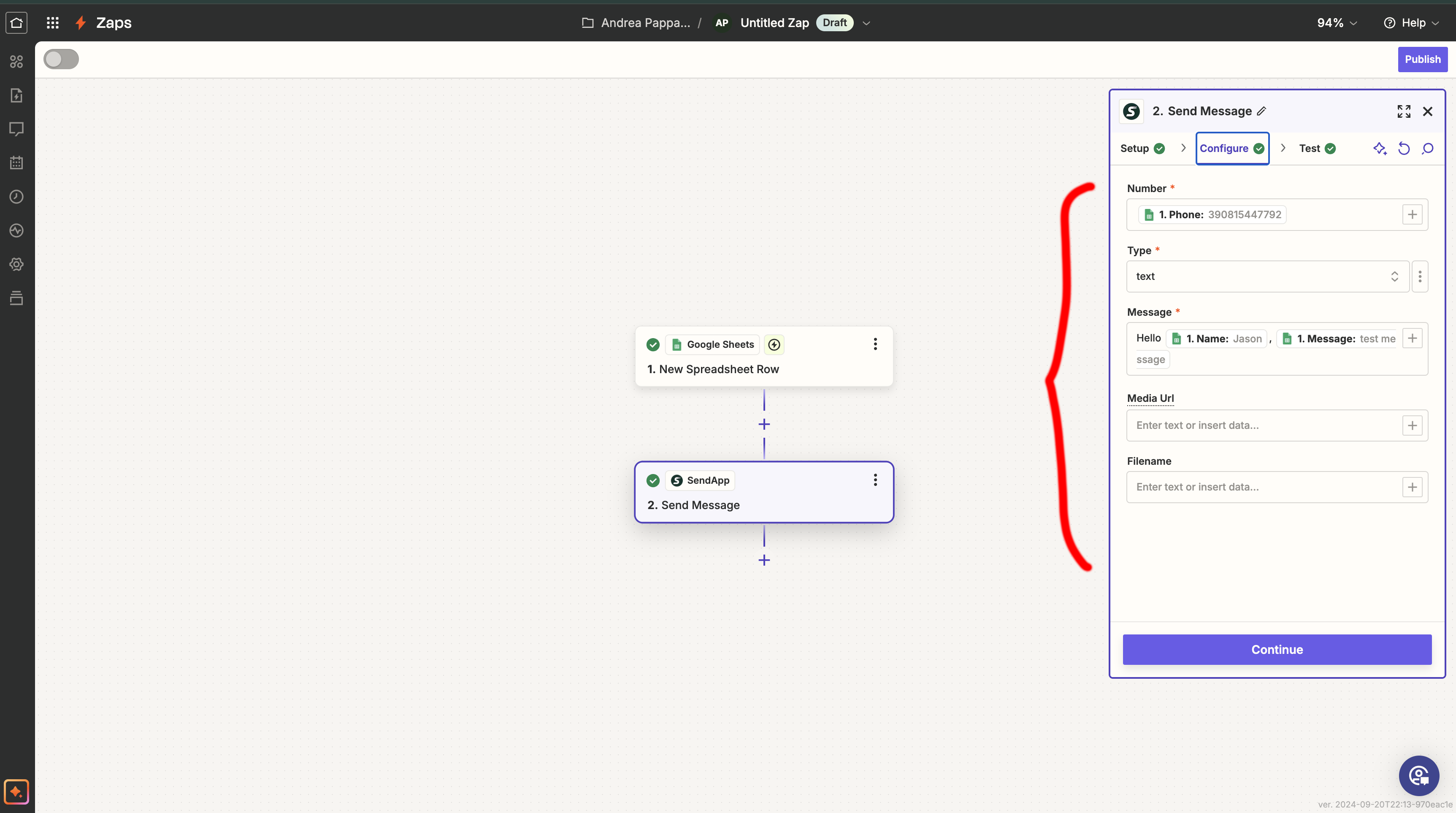
- In the field telephone number, select the option corresponding to the “Phone Number” column of the CSV template.
- You choose Type: text to send a text message.
- Create a custom message using Google Sheet data. You can use the preset names and messages in the sheet columns.
- Click on Continues.
Step 8: Perform the Test
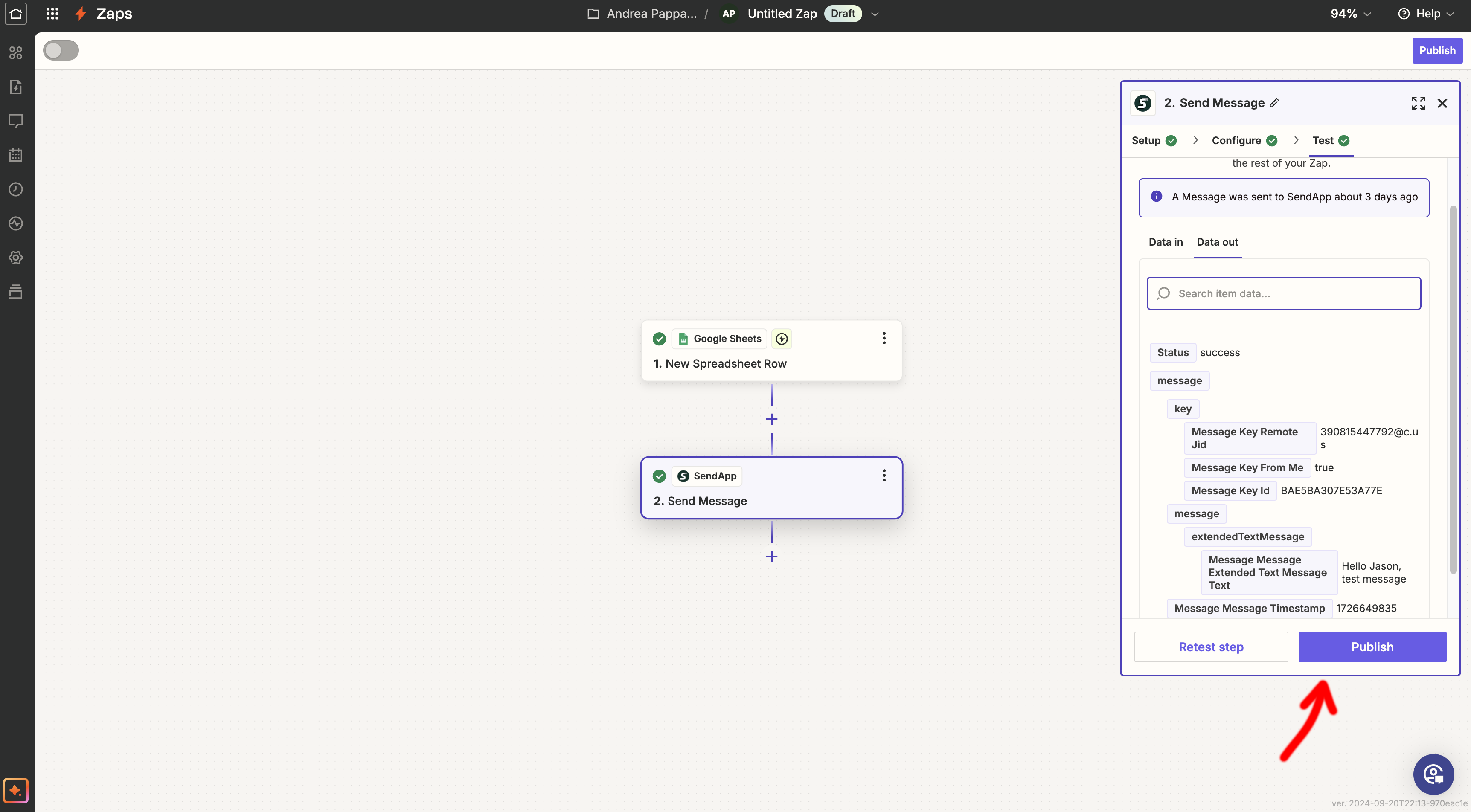
Before activating the Zap, test to ensure that the WhatsApp message is sent correctly via Sendapp. Add a new row to the Google Sheet and see if the message is sent with the correct data.
Step 9: Activate your Zap
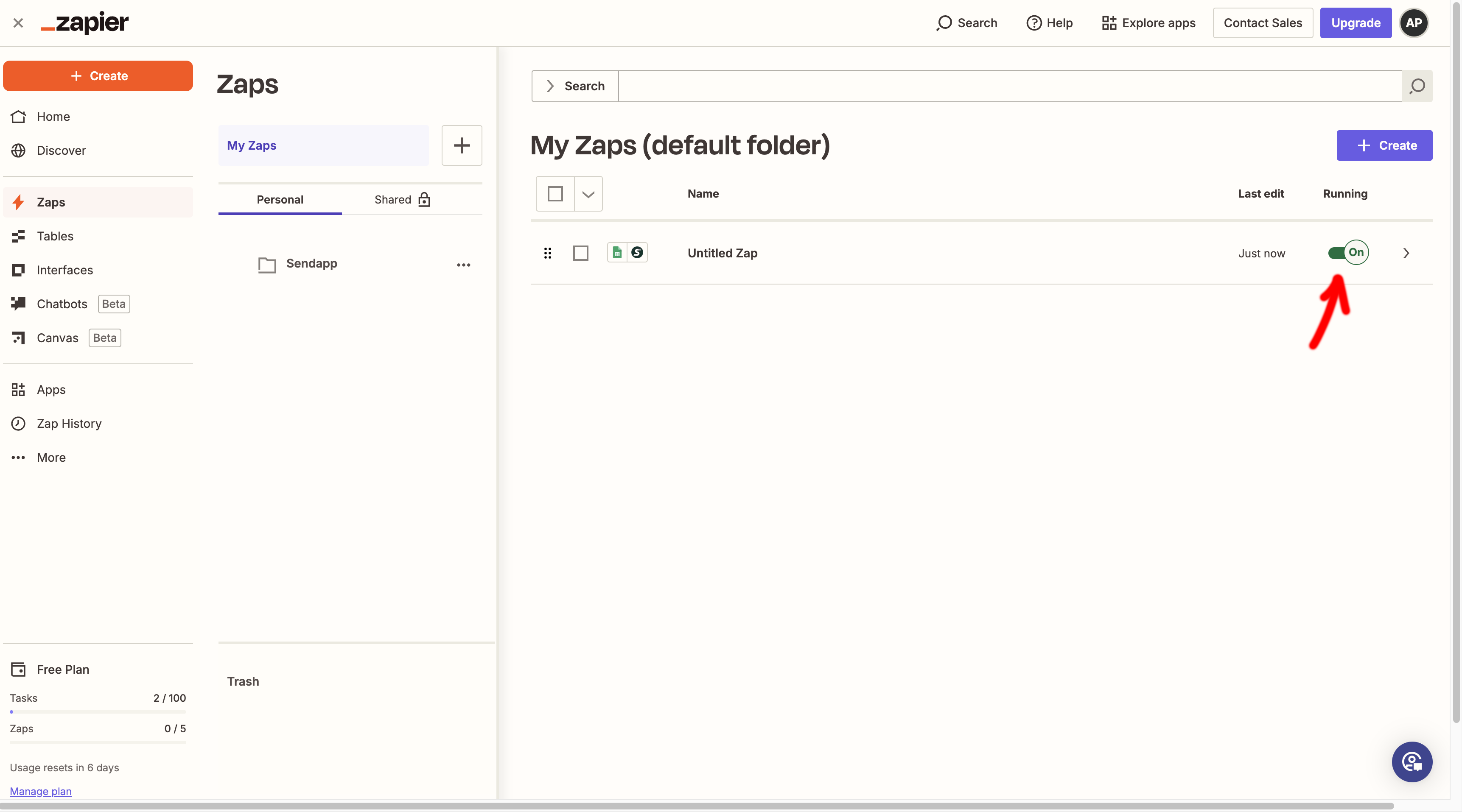
If everything works as expected, click on “Turn on Zap”. Now, whenever you add a new row to your Google Sheet, Sendapp will automatically send a personalized WhatsApp message to the recipient.
 Conclusion
Connect Sendapp to Google Sheets through Zapier It's a simple and powerful way to automate your WhatsApp marketing. This allows you to send messages to your customers without any manual effort, improving efficiency and communication. Try creating your first one today. Zap and discover how this automation can simplify your workflow!