
Instructions for using the SendApp WordPress Woocommerce plugin

How to add tracking number to your email template

A shipping tracking number can be added to the message template using a simple method described in the post linked below. We'll also show you how to create a shipping tracking number placeholder for two major WooCommerce plugins, the WooCommerce shipment tracking and the order tracking Yith WooCommerce , so using this method you can create your own placeholder for any plugin out there without any developer knowledge or coding.

We even recommend reading the article linked below or at least skimming it before proceeding with one, so you can get a better understanding of what we're doing.

Shipping Tracking via WooCommerce

According to the WooCommerce document https://docs.woocommerce.com/document/shipment-tracking/ Your order's shipping tracking number is saved under order meta (postmeta table) with the key _wc_shipment_tracking_items , but since they are saving the number tracking as an array, you will also need to mention their array key in our placeholder for this to work properly.

So, for order data, the format for the placeholder starts with {{order-  after this, you need to mention your meta-key, which in case Shipping Tracking for WooCommerce è _wc_shipment_tracking_items and since they are saving the details in an array and an array key for the shipping number as per their document is tracking_number so we will have to add this in the placeholder with colon (:) as : tracking_number . So the final placeholder will look like this.

{{order-_wc_shipment_tracking_items: TRACKING_NUMBER}}

And using this method, you can create placeholders for any value or plugin that uses an array to store data in the database. If you're unsure what your meta key and array are, you can contact the plugin developer to find out, or you can try searching your database yourself and finding it.

You can also use the following placeholders which will work for this plugin

Tracking Number: {{order _wc_shipment_tracking_items: TRACKING_NUMBER}}
Tracking Provider: {{order _wc_shipment_tracking_items: tracking_provider}}
Date Shipped: {{order _wc_shipment_tracking_items: date_shipped}}
Custom Monitoring Providers: {{order _wc_shipment_tracking_items: custom_tracking_provider}}
Tailored Tracking Link: {{order-_wc_shipment_tracking_items: custom_tracking_link}}

We've also built integration with the Shipping Tracking plugin so you can even render tracking links for it.

Tracking link: {{wc-tracking-link}}

Please note that the codes short above will only work with the WooCommerce shipping tracking plugin .But you can create placeholders for any plugin that stores data in an array format using the same method.

Advanced Shipping Tracking for WooCommerce

Advanced shipping tracking data for WooCommerce is stored in the WordPress postmeta table, so the placeholder will start with {{post- as a prefix and the tracking data will be stored in an array.

Tracking Number: {{post-_wc_shipment_tracking_items: TRACKING_NUMBER}}
Tracking Provider: {{post-_wc_shipment_tracking_items: tracking_provider}}
Date Shipped: {{post-_wc_shipment_tracking_items: date_shipped}}
Custom Monitoring Providers: {{post-_wc_shipment_tracking_items: custom_tracking_provider}}
Tailored Tracking Link: {{post-_wc_shipment_tracking_items: custom_tracking_link}}

We've also built integration with the Shipping Tracking plugin so you can even render tracking links for it.

Tracking link: {{wc-tracking-link}}

Please note that the above function codes only work for the Advanced Shipping Tracking for WooCommerce by Zorem .But you can create placeholders for any plugin that stores data in an array format using the same method.

AfterShip – WooCommerce Tracking

AfterShip – WooCommerce Tracking data is stored in the WordPress postmeta table, so the placeholder will start with {{post- as a prefix and their tracking data will be stored in meta-key.

Tracking number: {{post-_aftership_tracking_number}}
Name courier : {{post-_aftership_tracking_provider_name}}
Shipping date: {{post-_aftership_tracking_shipdate}}
Tracking code: {{post-_aftership_tracking_postal}
Destination country: {{postco}

Please note that the above function codes will only work with AfterShip – WooCommerce Tracking .But you can create placeholders for any plugin that stores data in meta-key format using the same method.

Yith WooCommerce Order Tracking

Since yith does not save their tracking data in array format like the plugin above, so it is much easier to create and understand the placeholder and most plugins do not save their data in an array, so this process will be the same for most of the plugins.

Yith data is stored in WordPress postmeta table, so the placeholder will start with {{post- as a prefix and their tracking data is stored with meta ywot_tracking_code, so the tracking code for this plugin will be

{{Post-ywot_tracking_code}}

Since there is no array used in this data, we will not use the array identifier in this placeholder.

Using this method, you can create placeholders for any plugin or tracking application out there that doesn't store its data in an array. If an array is used, use the WooCommerce shipping tracking method. If you're unsure what your meta key is, you can contact the plugin developer to find out, or you can try searching your database yourself and finding it.

You can also use the following placeholders which will work for this plugin

Tracking code: {{post-ywot_tracking_code}}
Operator Name: {{post-ywot_carrier_name}}
Date of withdraw : {{post-ywot_pick_up_date}}

Premium Version

Operator Name: {{post-ywot_carrier_id}}

Please note that the above function codes will only work with the Yith WooCommerce order tracking .But you can create placeholders for any plugin using the same method.
How to create custom placeholders

We support custom placeholders, which means you can create your own placeholder for any value in your database and aren't limited by the placeholders we provide. Simply follow the placeholder format below and insert it into your template for use—no code changes required.

For order details {{ order-meta_key }}

For user details {{user- meta_key }}

For post meta {{post- meta_key }}

For multi-vendor/marketplace plugins {{vendor- meta_key }}

In the formats above simply replace the meta_key text with the actual meta key. 

If you do not know where the data is stored, you can contact the respective plugin developer to find out. 


If the data in meta is saved in an array in meta or while sending SMS the return “Array” in the message, to use the array values you can use the following format

{{ order- meta_key : arraykey }}

{{user- meta_key : arraykey }}

{{post- meta_key : arraykey }}

{{vendor- meta_key : arraykey }}

In the previous formats, simply replace the meta_key and arraykey text with the actual meta key. 

If you don't know which array key the data is stored in, you can contact the respective plugin developer to find out. 

How to know if data is saved in the array?

The easiest way to check this is to ask the plugin developer.

Install and activate the Sendapp plugin

There are two different ways to install a Sendapp plugin.

From the WordPress admin dashboard (/wp-admin)

  1. Download the “.zip file” – from the “Download” tab”
  2. Do not unzip the downloaded .zip file
  3. Log in to your WordPress admin panel.
  4. Select Plugins, then Add New.
  5. Select Load Plugin.
  6. Browse your computer to select the “sendapp-wp.zip” file.
  7. Click Install Now and WordPress will do its magic and install the plugin.
  8. Once the installation is complete, activate the plugin.


Via FTP

We recommend that only experienced users use the FTP method.

  1. Download the “.zip file” – from the “Download” tab”
  2. Before attempting to upload your theme you must unzip the downloaded file “sendapp-wp.zip”
  3. Open your FTP client and open your plugins folder  (wp-content / plugins /)
  4. Move the unzipped files (sendapp-wp.zip) in the plugins folder. Now go to your WordPress admin dashboard => Plugins => Installed Plugins and then activate the Sendapp plugin from there.

Placeholders for message template

Below is a list of placeholders you can use in your message template. The shortcodes are grouped together below for easy reading and finding.

General

{{site name}} Site Name
{{Wc-ordine}} Order number
{{Wc-order-id}} Order ID / Post ID
{{Wc-end-date}} Order date
{{Wc-order status check}} Order status
{{-Payment-method wc}} Payment Method
{{Wc-transaction-id}} Payment Transaction ID
{{Wc-transport-method}} shipping method

WordPress Profile Details

{{First-wp-name}} First name
{{Wp-last-name}} Surname
{{Wp-username}} Username
{{Wp-nickname}} nickname
{{Wp-display-name}} Display name
{{Wp-mail}} E-mail
{{Wp-user-website}} User's Website
{{Wp-user-bio}} User biography

WooCommerce Order Details

{{wc-products-names}} All item/product names in order
{{Wc-prodotto-name-count}} Name first object then item counter
{{WC-total-products}} Total number of products in order
{{WC-total-items}} Total number of items on order
{{wc-order-items}} Names of all products in order with item counter
{{Wc-fine-amount}} Total amount (VAT included)
{{Wc-discount}} Total discount amount
{{Wc taxes}} Total tax amount
{{Wc-end-quantity-ex-taxes}} Total amount (VAT excl.)
{{Wc-transport-cost}} Shipping costs
{{Wc-refund-amount}} Amount refunded
{{Wc-refund-reason}} Reason for refund
{{wc-order-note}} Order Notes Provided at Time of Order
https://yoursiteurl.com/checkout/order-received/{{wc-order}}/?key={{post-_order_key}} WC Order Confirmation Link
https://yoursiteurl.com/checkout/order-pay/{{wc-order}}/?pay_for_order=true&key={{post-_order_key}} Link to the Pending Payment page

WooCommerce Billing Details

{{Wc-billing-first-name}} Billing Name
{{Wc-billing-last-name}} Billing Surname
{{Wc-billing-company}} Billing company
{{Wc-billing-Address-line-1}} Billing address line 1
{{Wc-billing-Address-line-2}} Billing Address Line 2
{{Wc-billing-city}} Billing City
{{Wc-billing-Cap}} Postal code / Billing postal code
{{Wc-billing-status}} Billing State/County
{{Wc-billing-country}} Billing Country
{{Wc-billing-mail}} Billing email
{{Wc-billing-phone}} Billing Phone

WooCommerce Shipping Details

{{Wc-transport-first-name}} Shipping name
{{Wc-transport-last-name}} Shipping Surname
{{Wc-transport-company}} Shipping company
{{Wc-transport-address-line-1}} Shipping address line 1
{{Wc-transport-address-line-2}} Shipping address line 2
{{Wc-transport-city}} Shipping City
{{Wc-transport-Cap}} Shipping Postal Code / ZIP Code
{{Wc-transport-state}} Shipping Status
{{Wc-transport-country}} Shipping country

Stock market notifications

{{product name}} Product Name
{{Product-quantity}} Quantity of product

Multi-vendor/marketplace plugin notifications

{{vendor-product-names}} Product Name
{{vendor-total-items}} Total number of items on order
{{vendor-Order-articles}} Names of all products in order with item counter
{{Vendor-end-amount}} Total amount (VAT included)

New post

{{post title}} Post title
{{Post-contents}} Publish content
{{Post-link}} Insert link
{{Post-extract}} Postal extract
{{Post-author}} Postal Author
{{publication date}} Publication date
{{Post-category}} Mail category(ies)
{{post-tag}} Post tags

Setting options

Our goal is to provide as many features as possible so that you, as a site owner, can configure the plugin the way you want, while maintaining an easy-to-understand interface. But it's always good to know all the options.

The plugin is divided into three main sections

  1. Gateway
  2. Notifications
  3. Send quick SMS

We will discuss each of them and the options they offer.

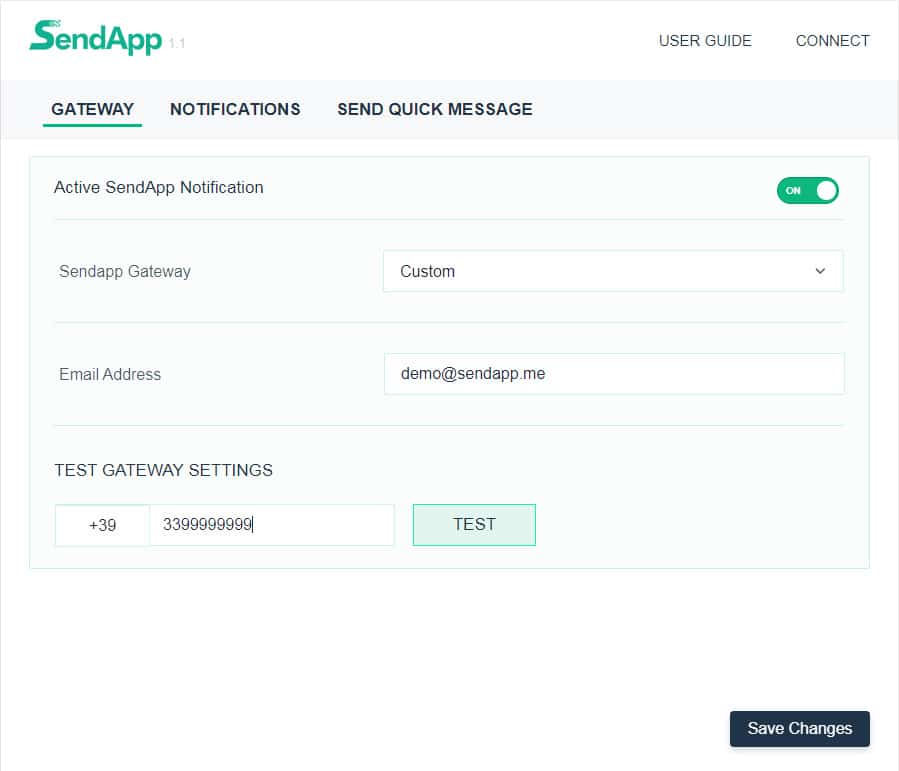
Gateway Card

This way, you will be able to set the sendapp gateway you want to use for sending WhatsApp messages along with SMS by enabling the option from your Sendapp Connect.

Notifications Tab

Here you can enable automatic WooCommerce order status notifications, so whenever the order status changes, these notifications will be triggered if enabled. You can enable/disable them specifically for customers and admins.

Note: By default, WooCommerce new order status is set to Processing , so make sure it's always turned on if you want to be notified about new orders.

Enable different content based on gateways

This option is available under the Customer notification section, activating this ON You can set up different gateways for different content. For example (use case):

  1. If you only want to send a new order notification to the countries that are set up for Twilio Gateway and to all other countries you want to be notified for all order updates, you can set this option by enabling this option and selecting the status and their content for each gateway you have set up on the Gateways tab.
  2. If you want to send SMS in different languages for the countries configured in the Gateway tab, by enabling this feature on all the gateways set in the Gateway tab, they will be listed and you will be able to edit the content for each of them.

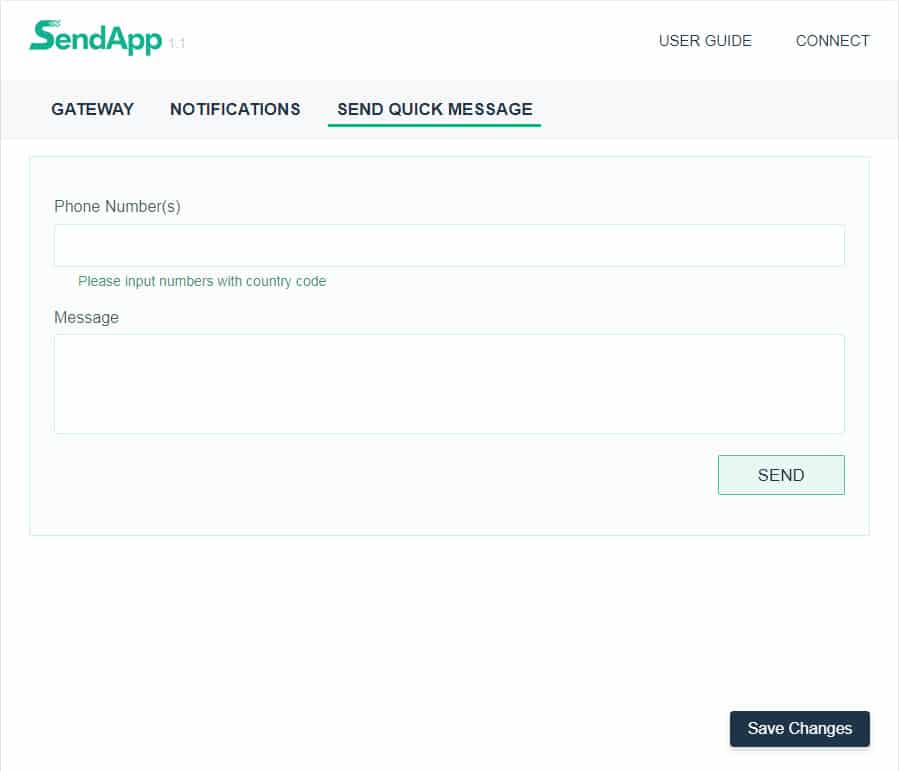
Send quick SMS

From here you can send quick SMS to any number you want. You can also send SMS to multiple numbers by separating different numbers with a comma ( , ). If different gateways are set for different countries, the message will be routed through the gateway set for that particular country. If there are multiple numbers from different countries, in this case, the numbers will be routed through their respective gateways. .